








Voicemail lets you manage messages from anywhere with personal greetings, save, delete, forward, and email delivery. You can also use transcription AI to email both the recording and a text transcript to your nominated email address.
To access voicemail settings:
-
Log in to your account.
-
Select Switchboard > Number.
-
Select Inbound > Voicemail Service.
-
Click Save to update settings.
Recording your voicemail
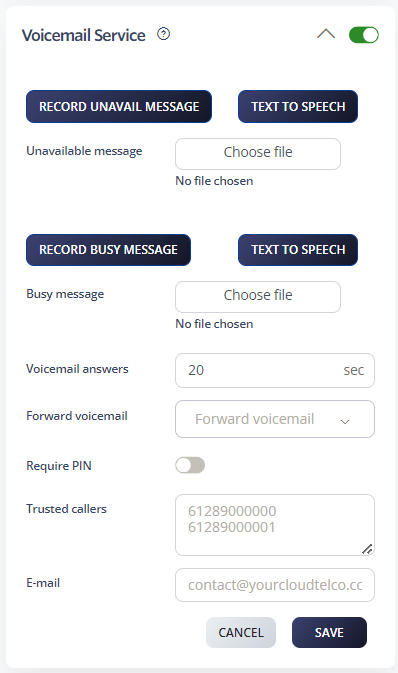
Enter your call-back phone number and record your Unavailable or Busy messages. Follow the prompts to confirm or re-record.
Uploading voicemail recordings
Upload MP3 recordings for higher quality Unavailable or Busy messages.
Note: The maximum file size is 400 KB. For larger files, we recommend a 256 KB recording rate.
Voicemail access and delivery
-
Access your voicemail box: Dial *55 to listen to your messages.
-
Voicemail PIN: To access voicemail from another phone, you’ll need a PIN code. Press *55 during the message and enter your PIN followed by #.
-
Trusted callers: Create a trusted caller list to skip the PIN entry. Callers on this list can access your voicemail without entering a code.
-
Voicemail ring delay: Set how many seconds to wait before diverting calls to voicemail.
-
Email delivery: Enter the email address where voicemail messages should be sent.
-
Transcription: Enable this to receive voicemail as both a recording attachment and text transcript in your email.
-
Remote access: Dial your own number from any phone and press *55 when voicemail answers, then enter your PIN followed by # to access messages remotely.
-
View in account: Check new voicemails by logging into your account and clicking the Messages tab.
Voicemail keys during playback
Use these keys while listening to voicemail messages:
-
4 — Previous message
-
5 — Repeat current message
-
6 — Next message
-
7 — Delete
-
8 — Forward
-
9 — Save