








User Settings
User Settings allows you to customise and manage your app experience. This article covers the main features available.
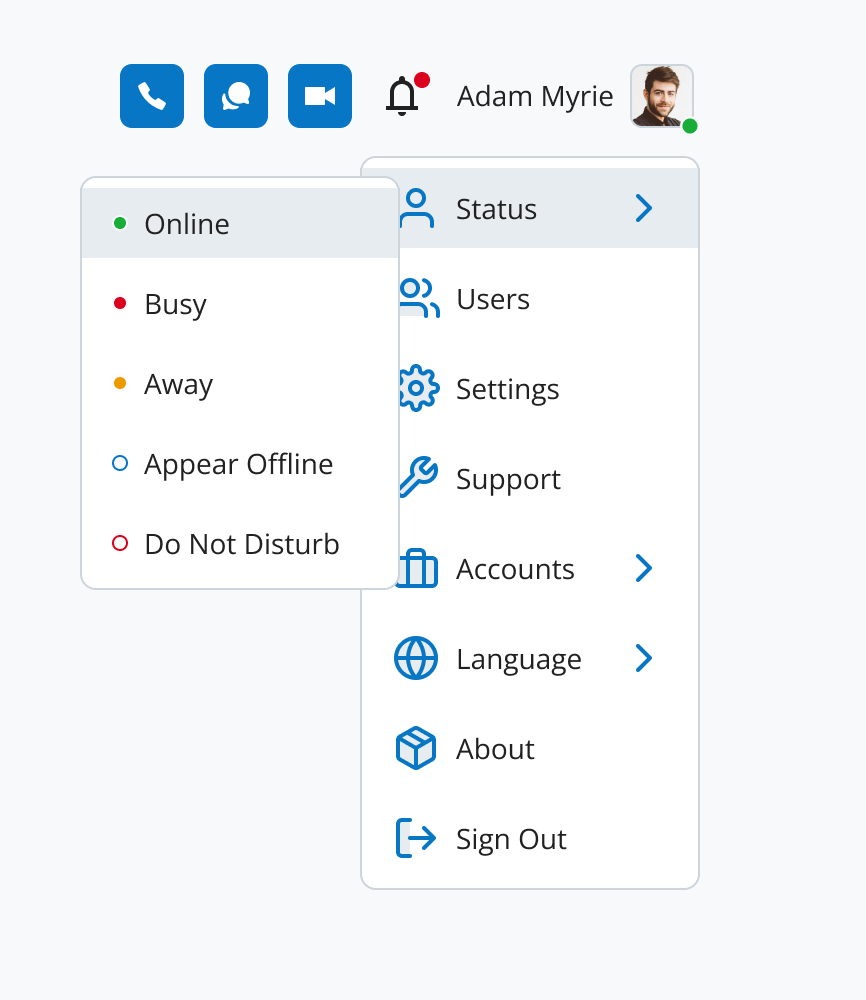
Status
Let your team know your current availability status.
Users
Administrators can access user management tools.
Settings
Configure your app settings.
Profile
Update your profile information at any time.
-
Go to User Settings > Settings.
-
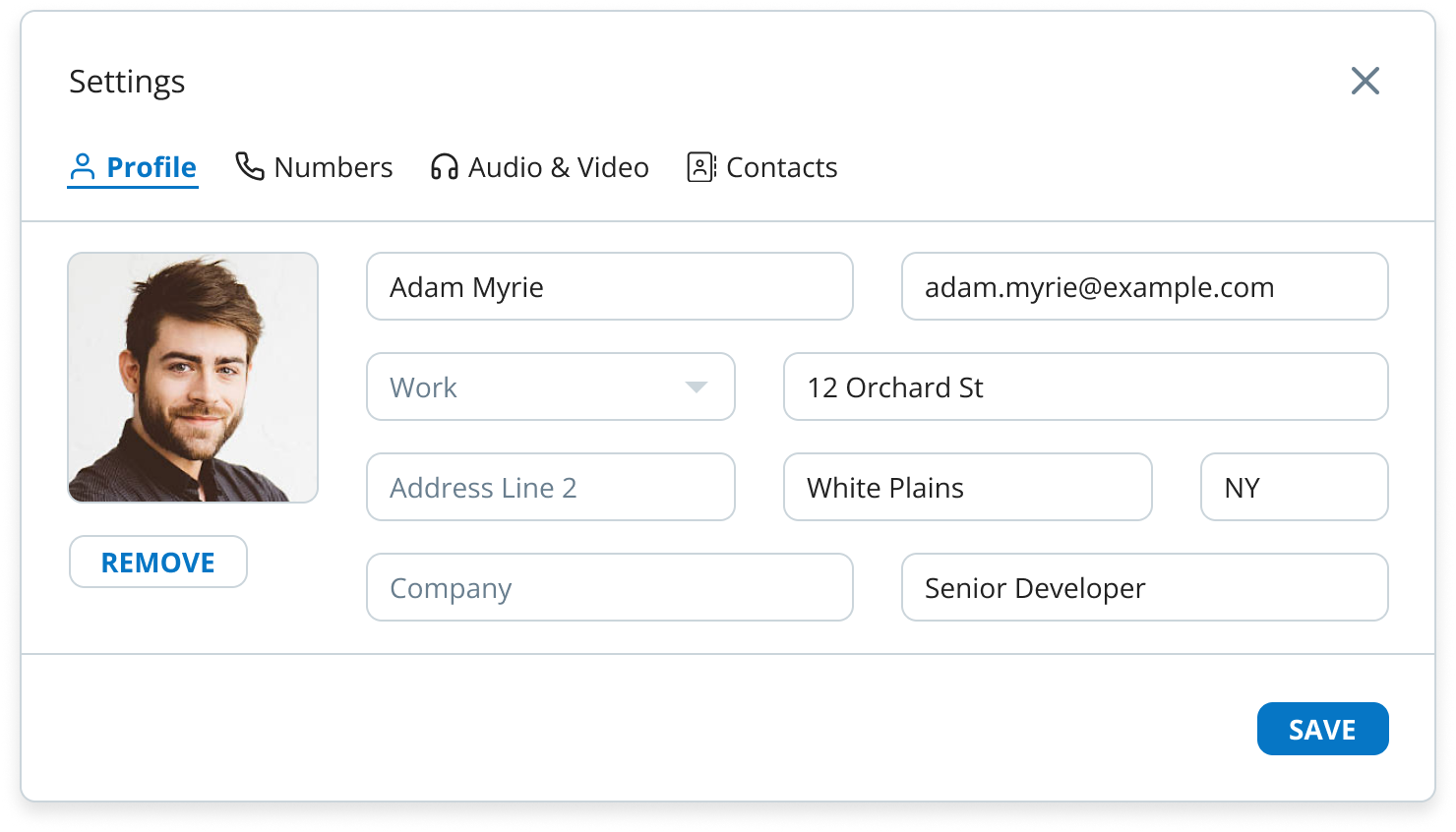
On the Profile page, update your information:
-
Name
-
Number type (Work, Home, or Other)
-
Address Line 1
-
Address Line 2
-
City
-
State
-
Company
-
Position
-
-
Click Save.
-
Refresh the page to see your changes.
Numbers
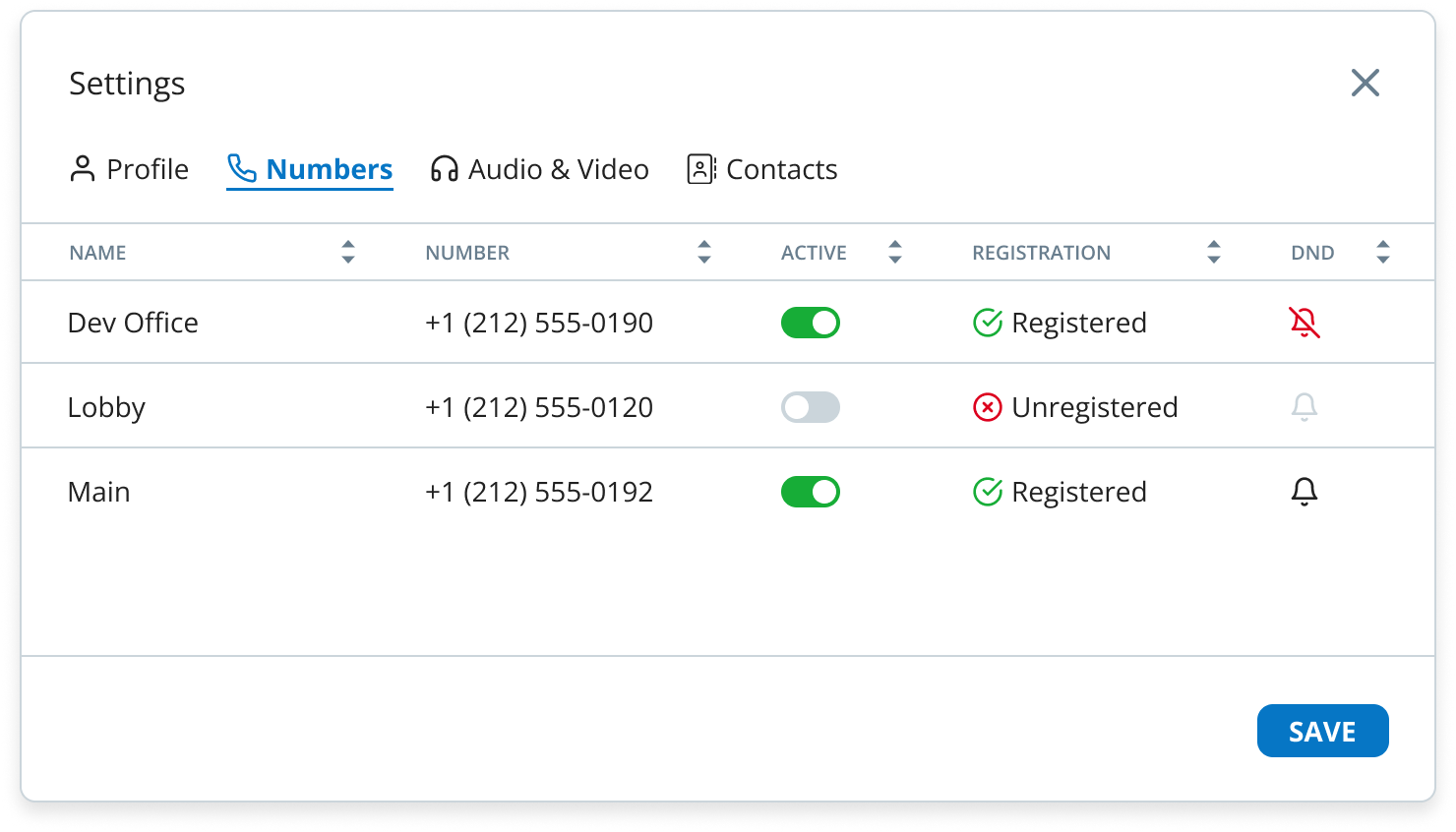
Enable or disable your phone numbers for calls.
-
Go to Menu Settings > Settings.
-
Click Numbers.
-
Toggle a number’s Active option to enable or disable it.
-
Manage Do Not Disturb by clicking the bell icon.
-
Confirm your changes.
Audio & Video
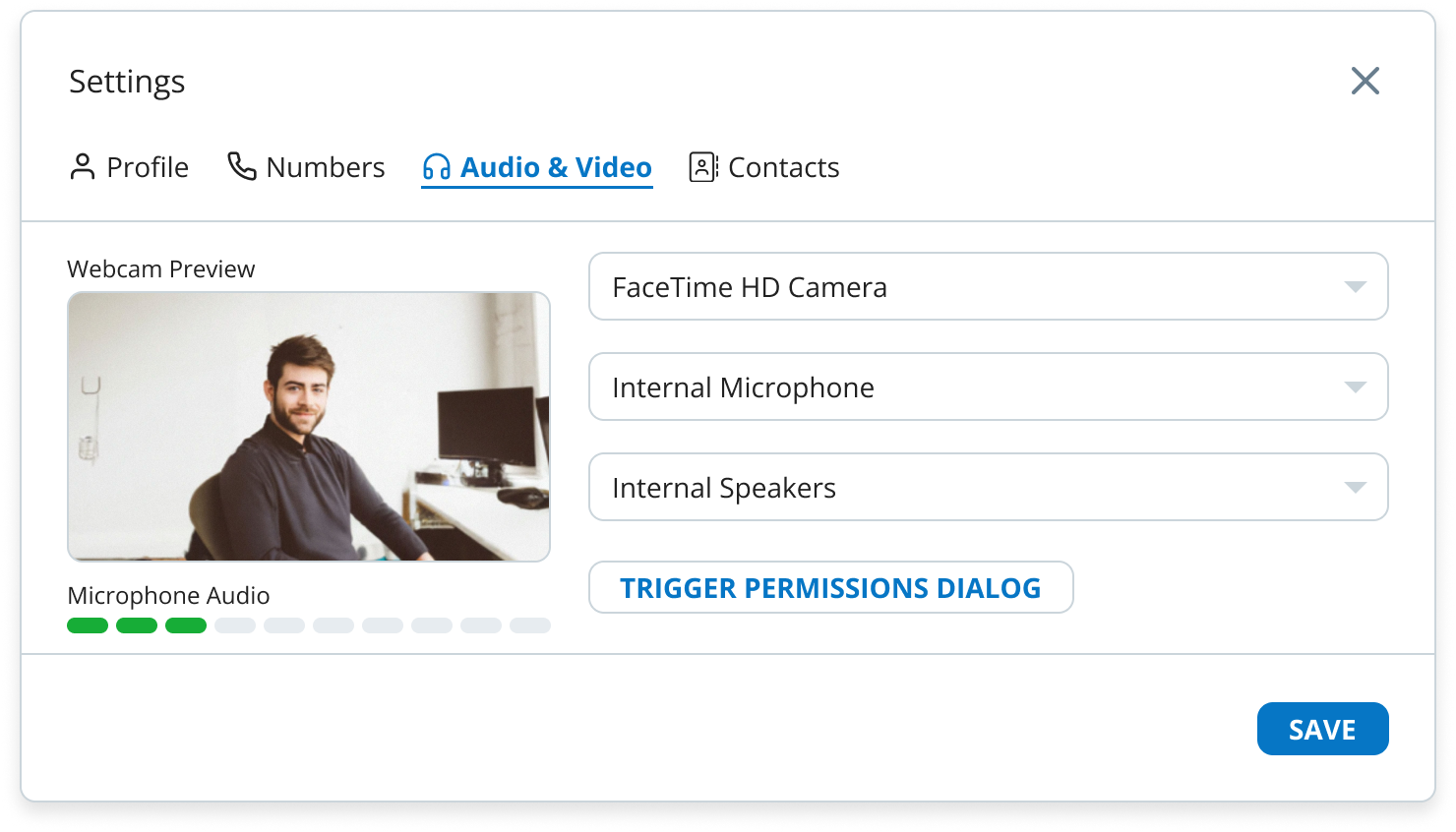
Set up and test your audio and video settings for optimal app performance.
-
Go to Menu Settings > Settings.
-
Click Audio & Video.
-
Configure your microphone, speaker, and camera.
-
Click Test to test your microphone audio.
-
Click Save.
Contacts
Manage your contacts and set up synchronisation through your account settings.
Accounts
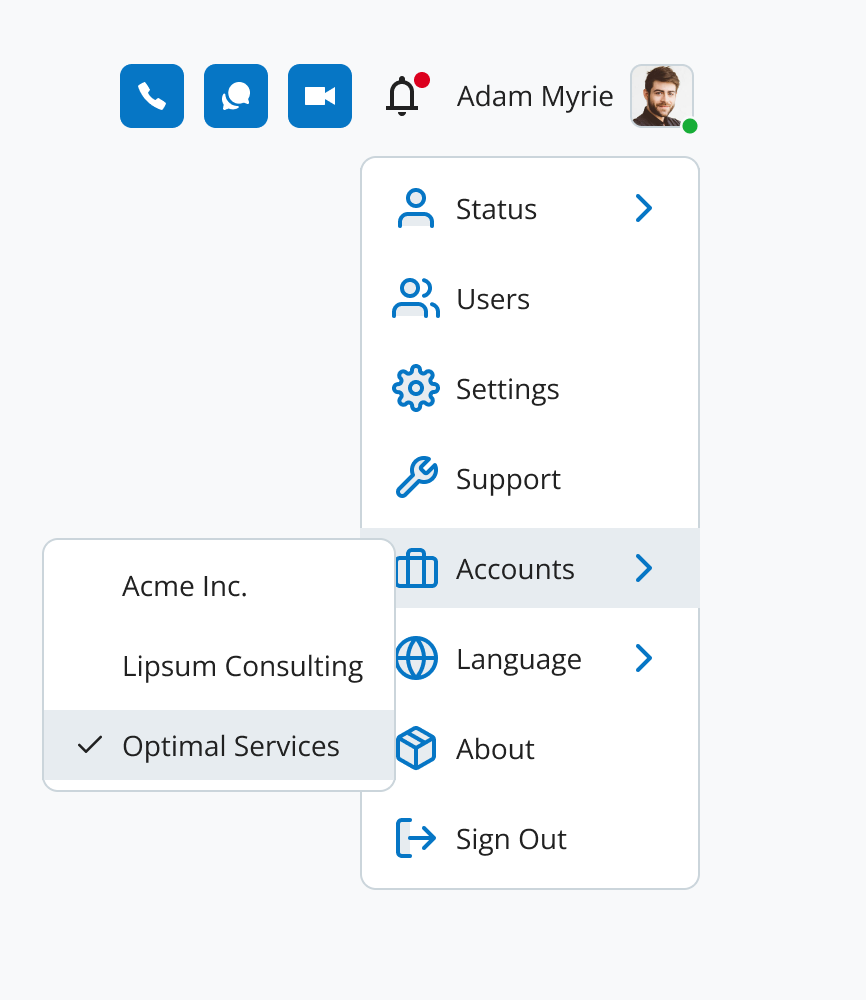
If you have multiple accounts, you can switch between them here. Go to User Settings > Accounts to select the account you want to use.
Language
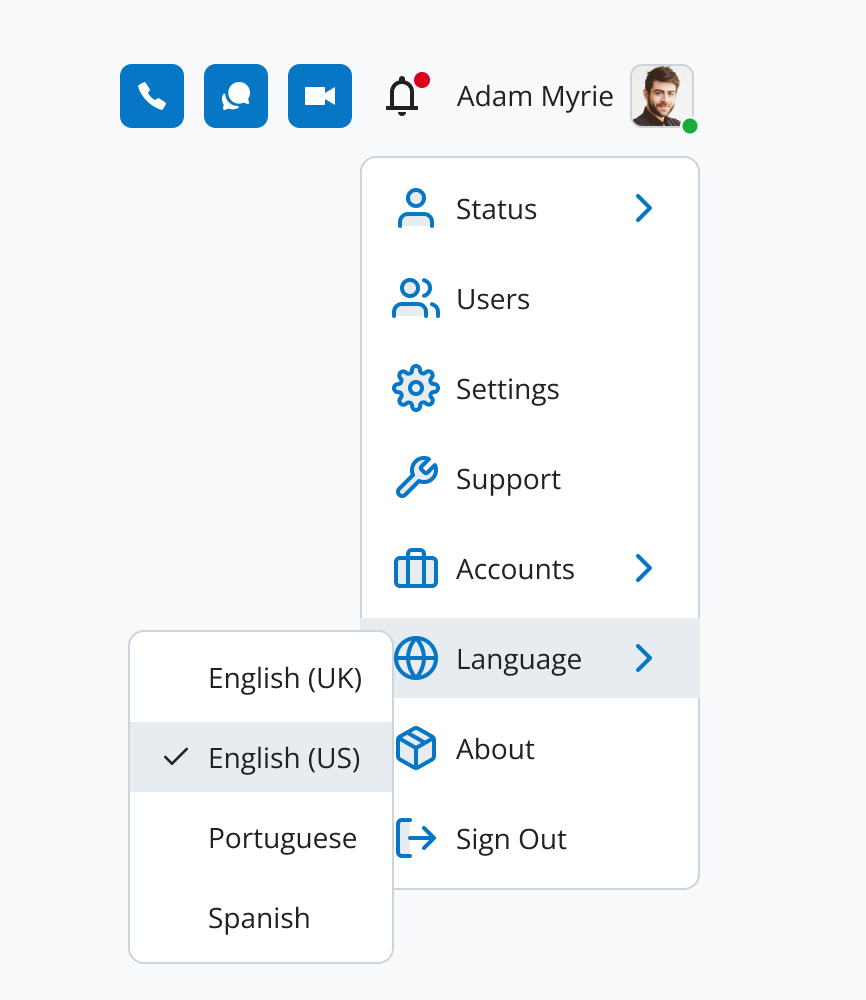
Switch between available languages for your app.
-
Go to User Settings > Language.
-
Choose from English (US), Portuguese, or Spanish.
-
Your choice applies immediately.
Browser permissions setup
Grant necessary permissions for camera, microphone, and notifications to ensure the app works properly.
-
Access your browser settings.
-
Enable camera, microphone, and notifications for the SIPcity Web App.
Firefox users
Firefox requires manual permission setup. Follow these steps:
-
Open the SIPcity Web App in Firefox.
-
Allow pop-ups for notifications, microphone, and camera when prompted.
-
If no pop-up appears:
-
Open the Firefox Application Menu (next to the address bar).
-
Go to Settings.
-
Navigate to Privacy & Security.
-
Scroll to Permissions.
-
Adjust settings for camera, microphone, and notifications.
-