








PortSIP is a softphone app you can use on your mobile phone to register and use your SIPcity number. Follow these steps to set up the app.
Step 1: Set a password for your number
-
Log in to your SIPcity account portal.
-
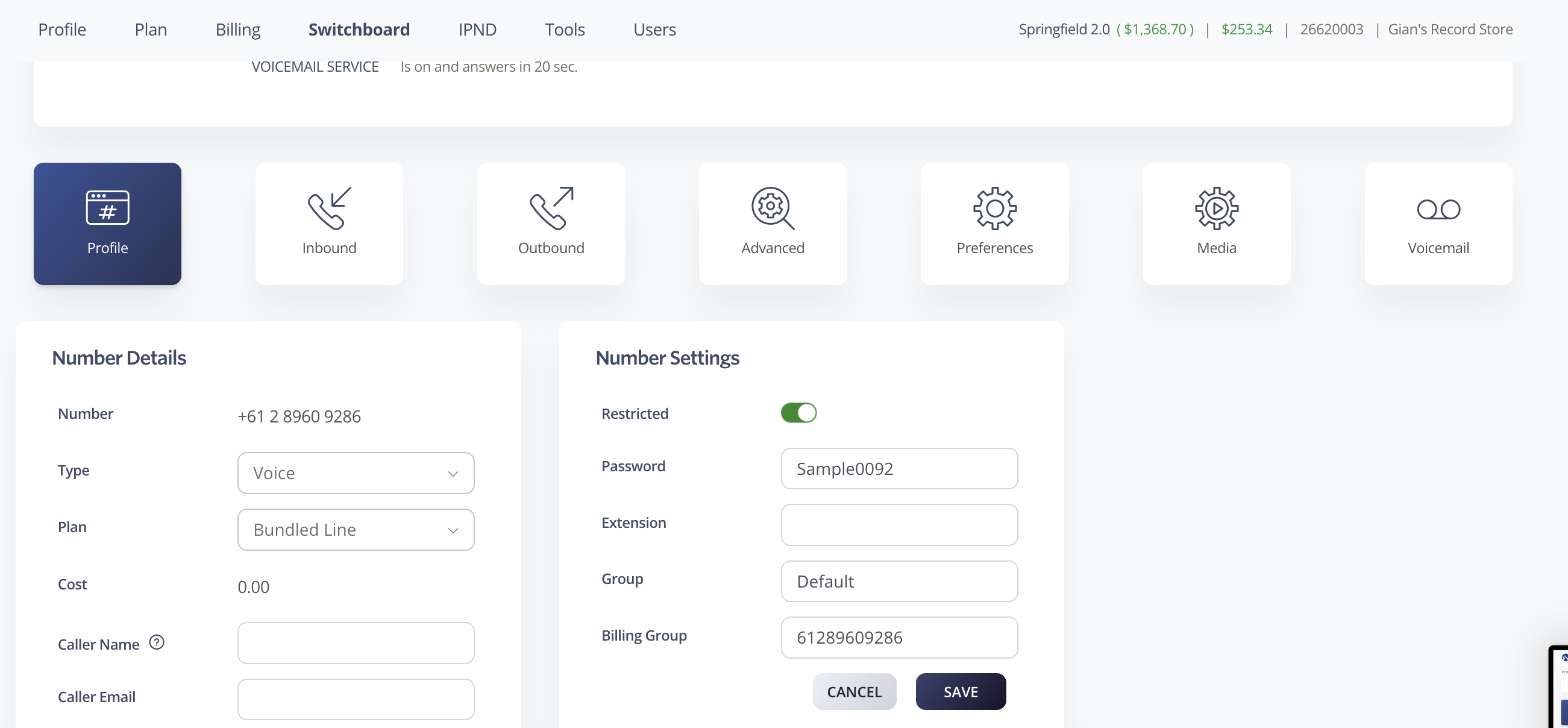
Go to Switchboard and select your number.
-
In the number settings under Profile, enable the Restricted toggle and set a password.
-
Save your password — you will need it to log in to the PortSIP app.
Step 2: Download the PortSIP Softphone App
-
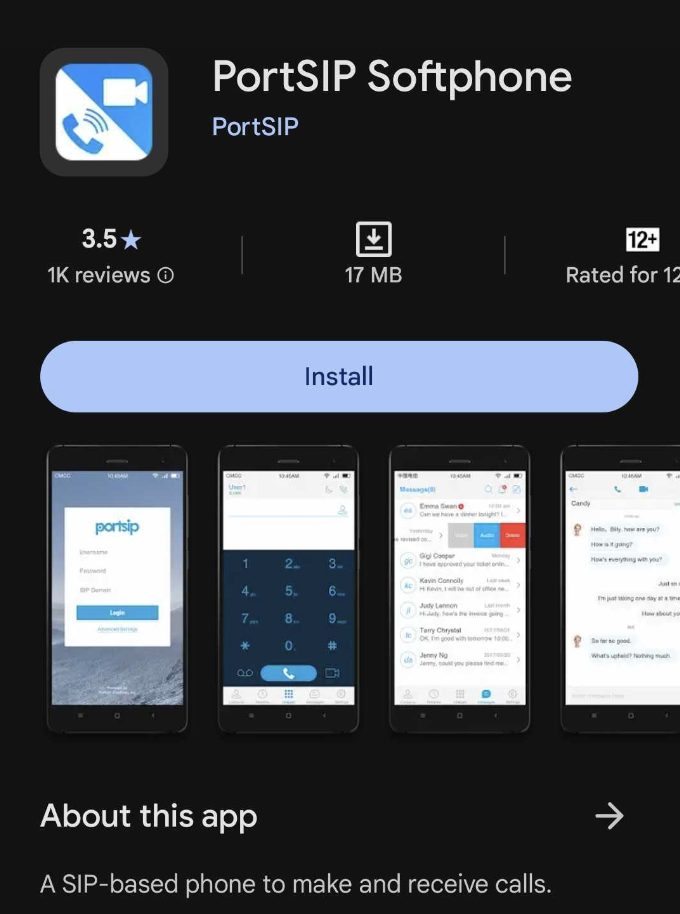
Open your Google Play Store.
-
Search for and download the PortSIP Softphone App.
Step 3: Grant permissions
-
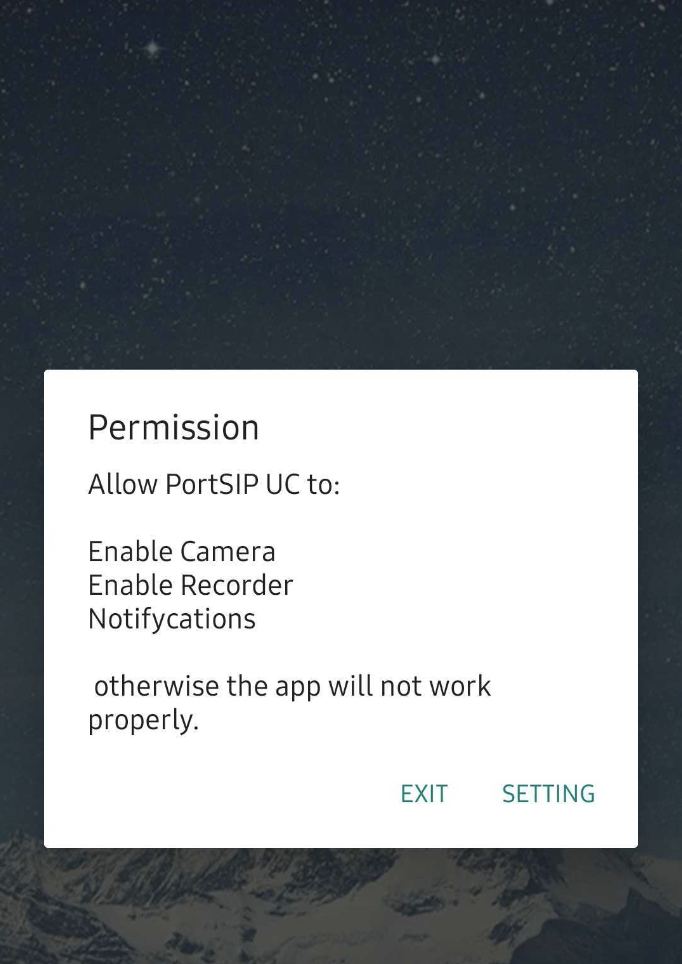
When you open the app for the first time, it will request permissions for camera, microphone, and other features.
-
Grant permission to all requested features — the app will not work properly without these permissions.
Step 4: Log in to the app
-
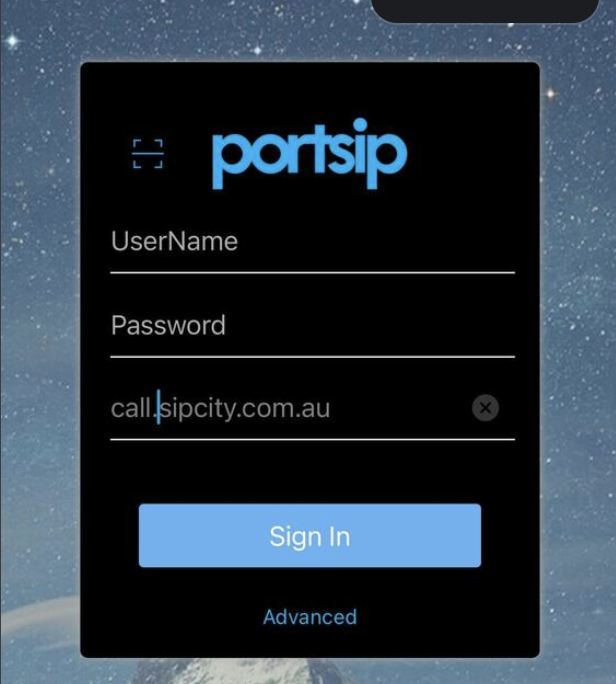
On the login page, enter the following details:
-
Username: Your SIPcity phone number (61xxxxxxxxx)
-
Password: The password you set in Step 1
-
Host/Domain: call.sipcity.com.au
-
Step 5: Configure advanced settings
-
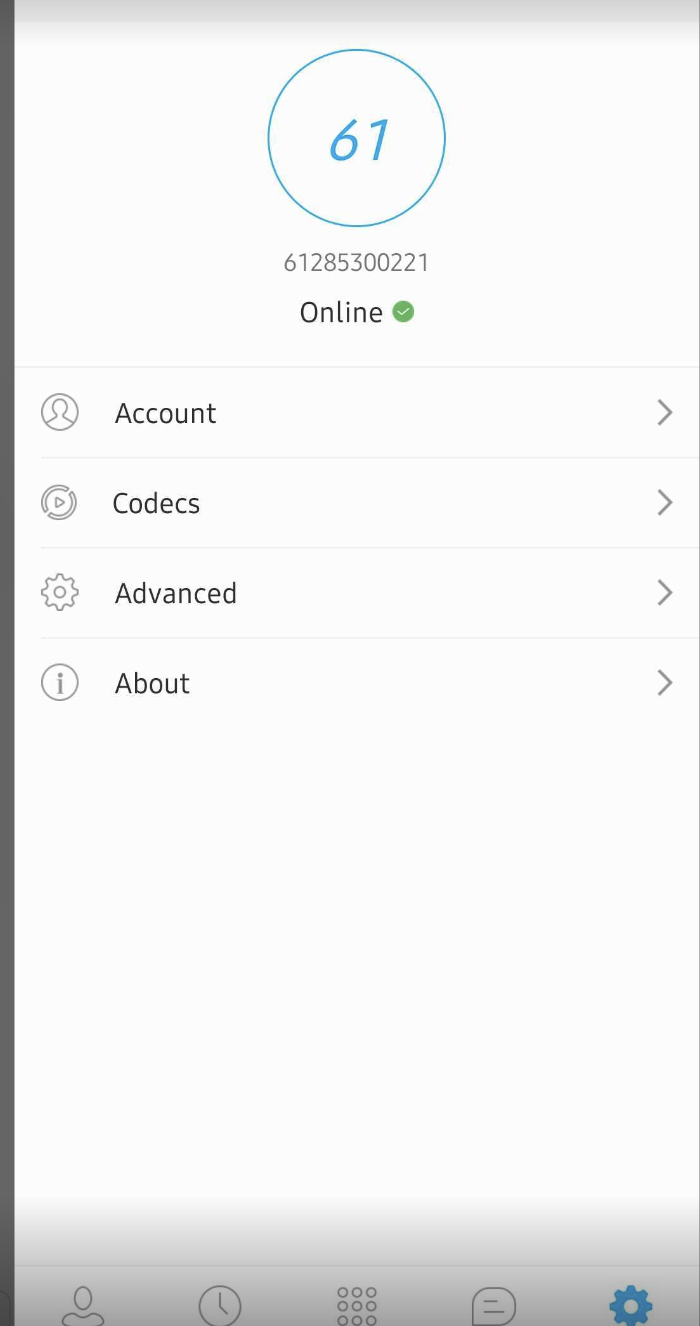
Once logged in, tap Settings in the lower right corner.
-
Tap Advanced.
Step 6: Enable notifications
-
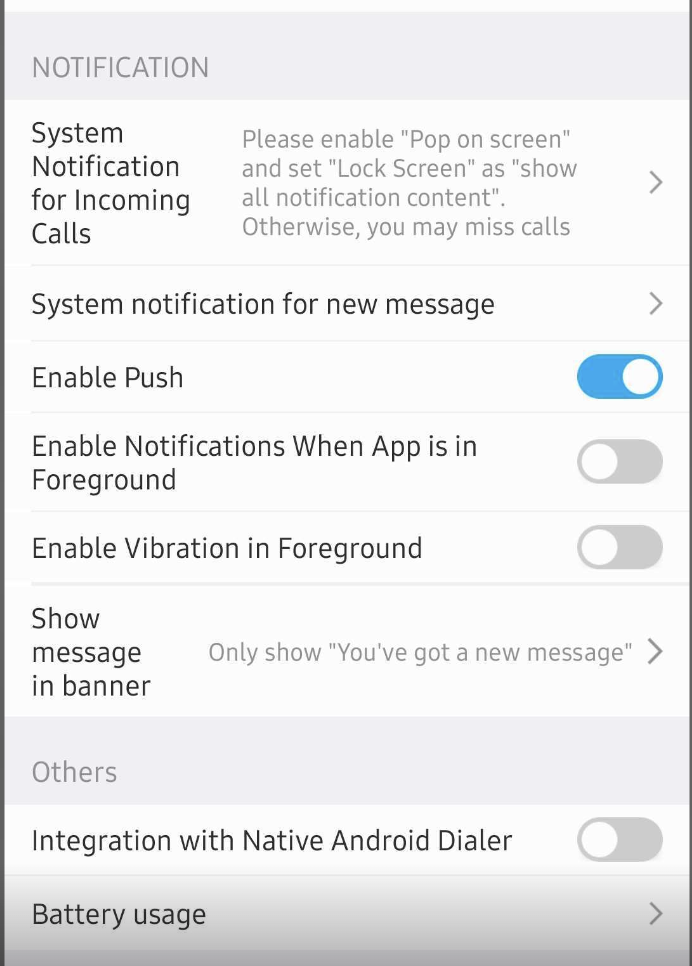
In the Advanced settings, scroll down and enable all notification and other relevant settings.
Step 7: Allow background operation
-
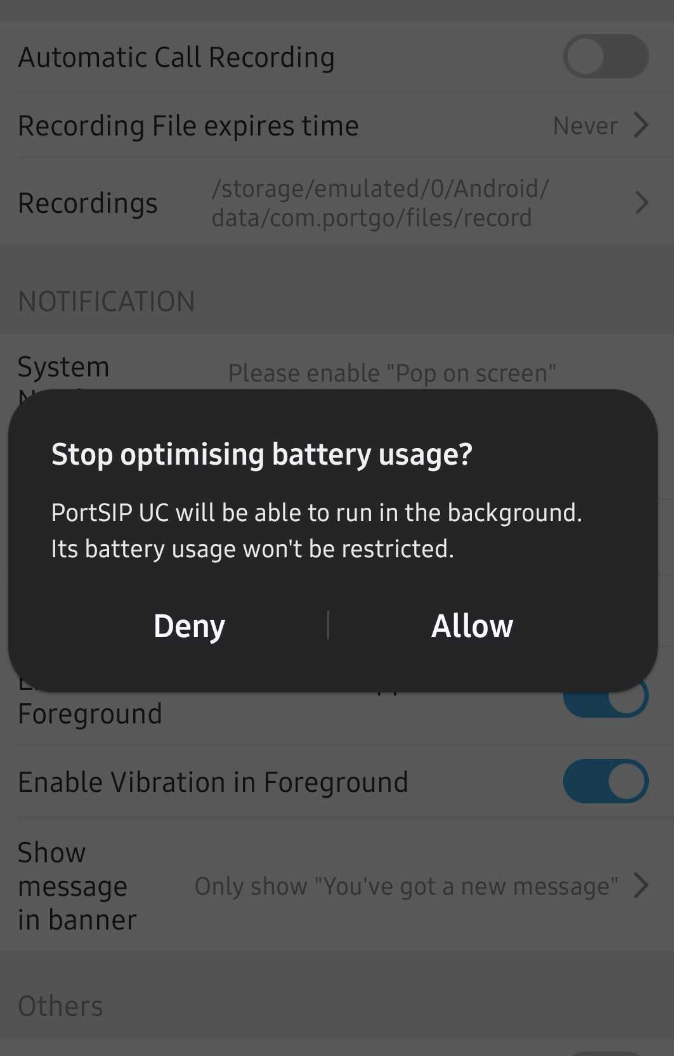
Tap Battery Usage.
-
When prompted, tap Allow. This ensures the app can run in the background and receive calls even when your phone is locked.

Step 8: Start making calls
-
Return to the home page and you are ready to make calls using your SIPcity number.