Device Provisioning

Use the SIPCity Device Provisioning page to search, add, and manage devices, including device details, time zone, and assigned phone lines.

The Device Provisioning page allows you to set up and manage the devices connected to your account. You can access it by selecting Devices from the navigation menu on the left-hand side of the screen.
Search for a device

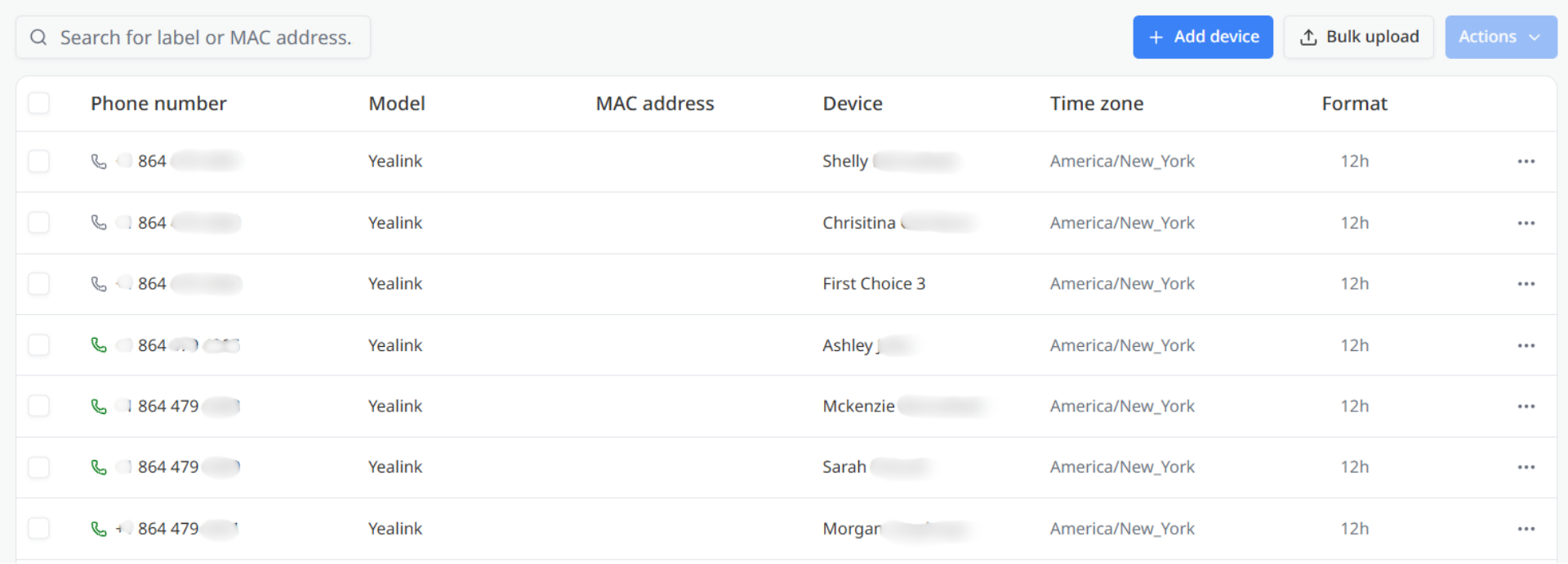
Use the search field at the top of the page to locate a device by entering its Device label or MAC address.

Page actions

To the right of the search field, you can access the following actions:

  • Add device — Opens the device setup window so you can provision a single device.
  • Bulk upload — Allows you to add multiple devices at once.
  • Actions — Provides additional bulk actions that can be applied to selected devices.

Devices list

The main section of the page displays the devices provisioned on your account. Each row represents a device and includes:

  • Phone number — The number assigned to the device.
  • Model — The make and model of the device.
  • MAC address — The device’s MAC address.
  • Device — The name or label assigned to the device.
  • Time zone — The time zone configured for the device.
  • Format — The configuration format used for the device.

If no devices have been provisioned, the page displays No records found.

Assign phone numbers

The Lines section allows you to assign phone numbers to the device.

Select Add line to add additional lines as needed.

Each line contains:

  • Phone number — Select the number to assign to the line.
  • Line name — Enter a name for the line. Use the delete icon beside the field to remove the line.

When you have finished configuring the device:

  • Select Save to provision the device with the settings you entered.
  • Select Cancel to close the window without saving your changes.

Was this article helpful?

Let us know so we can keep improving our guides.

Thank you for your feedback!

This form is only for article feedback. If you require assistance, please contact Support. How can we improve this page?

Related Articles

Still need help?

Our support team can help you get connected.