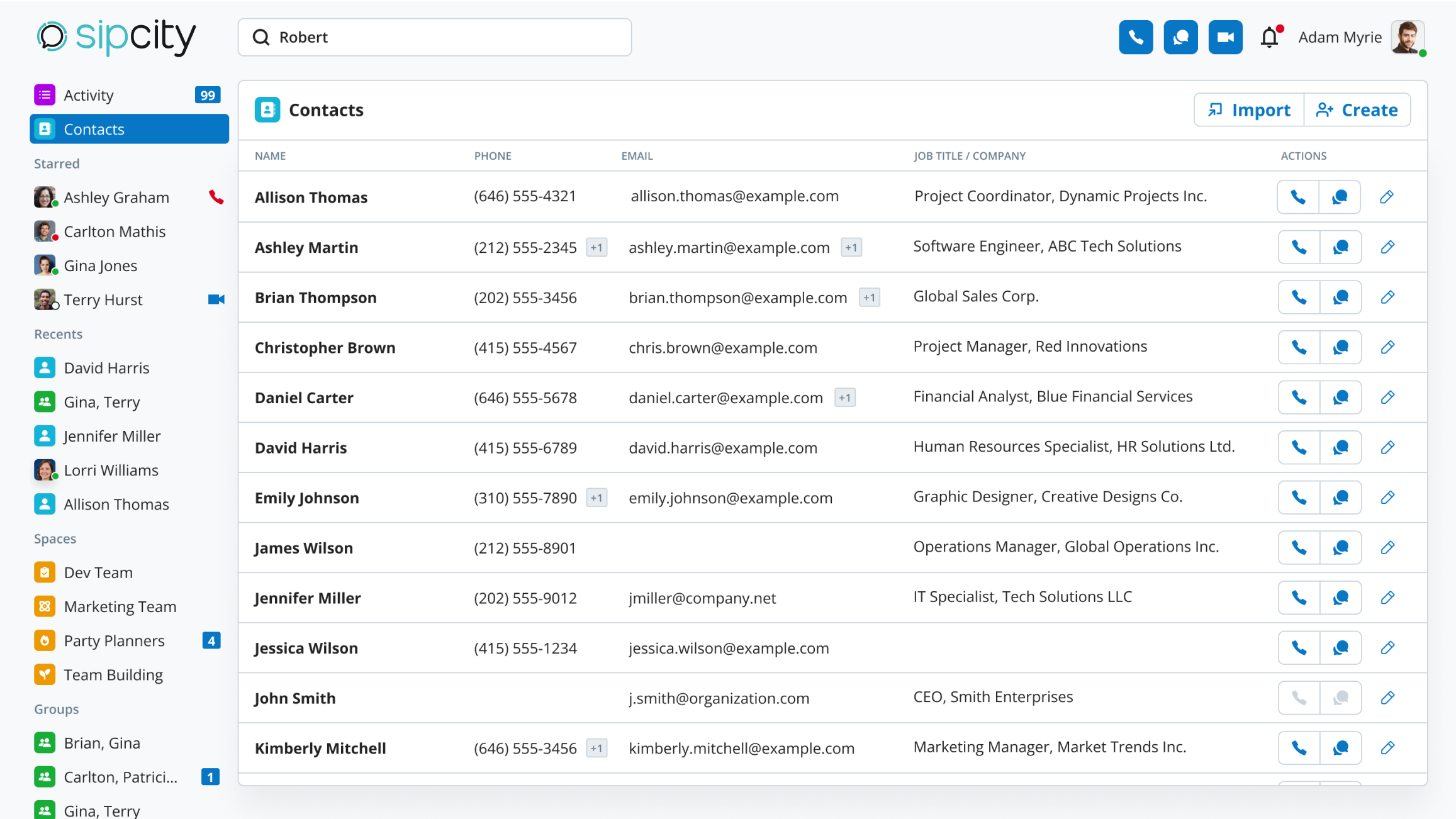
Manage your contacts in one place. Create local contacts, sync contacts from Microsoft or Google, and call them directly from your contact list.
Create a contact
A contact requires at least a first name or last name.
- Log in to your account.
- Go to Menu > Settings > Contacts.
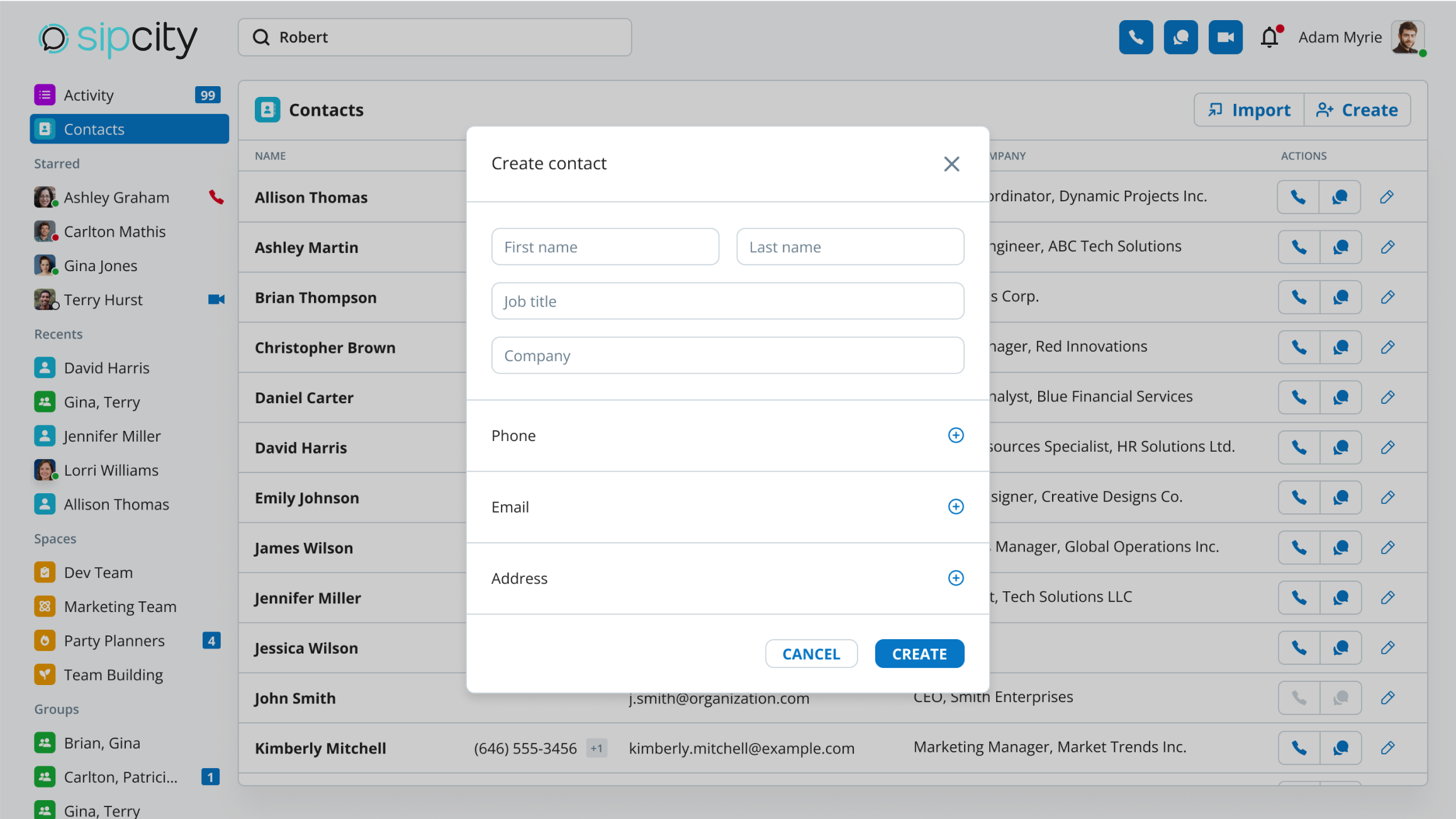
- Click Create.
- Fill in the contact details.
- Click the + button to add phone numbers, email addresses, or addresses.
- Click Create to save the contact.
Manage contacts
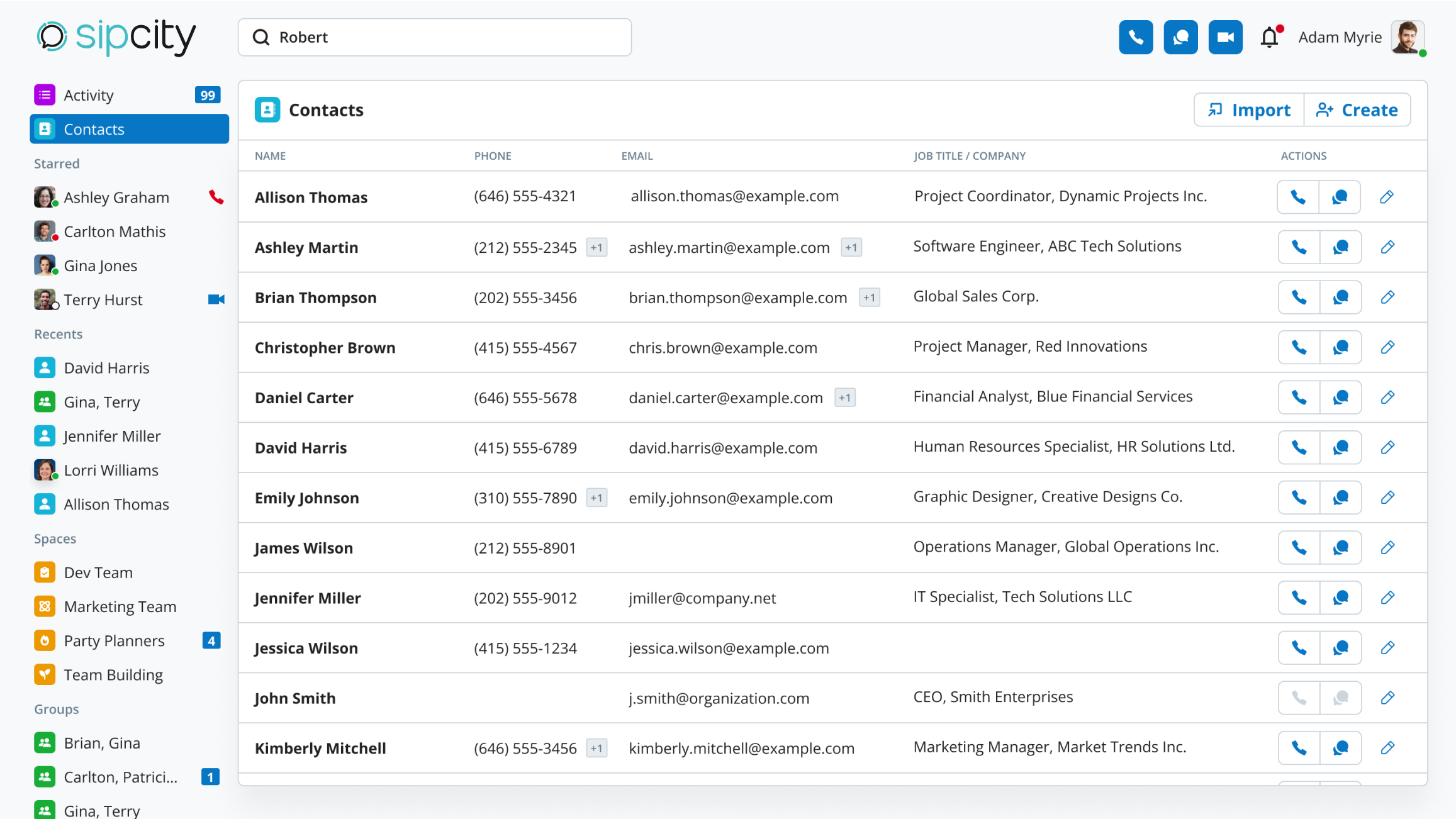
You can perform the following actions on locally created contacts:
- Make a call: Click the phone button next to the contact.
- Send an SMS: Go to the Chat page and use the SMS button (if SMS service is enabled).
- Edit contact details: Go to the Chat page, select the contact’s information, click Edit, and make your changes.
- Delete contact: Go to the Chat page, access the contact’s info, and click Delete.
Note: Edit and delete options are only available for locally created contacts. Imported contacts are read-only.
Sync contacts from Google or Microsoft
- Log in to your account.
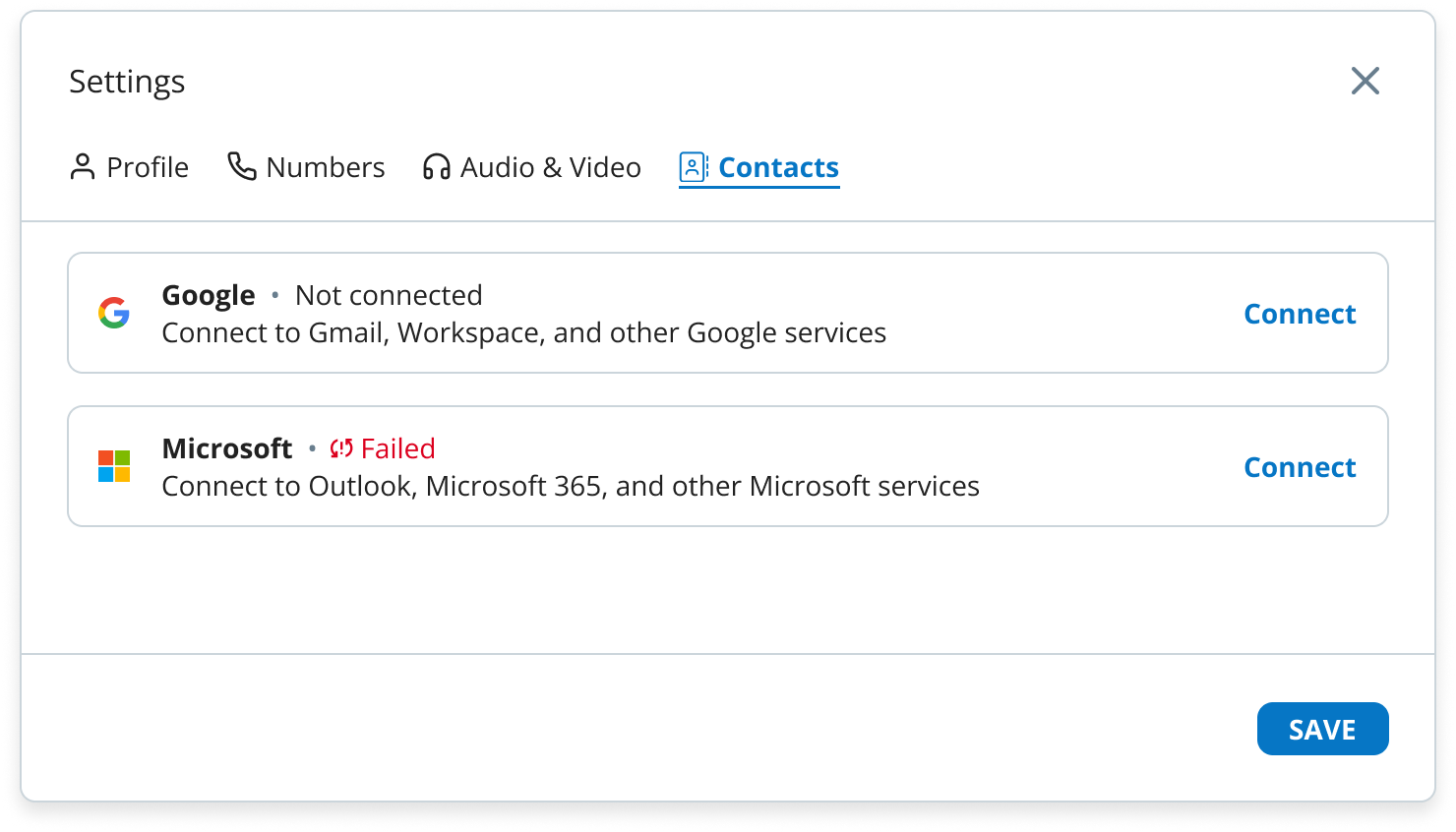
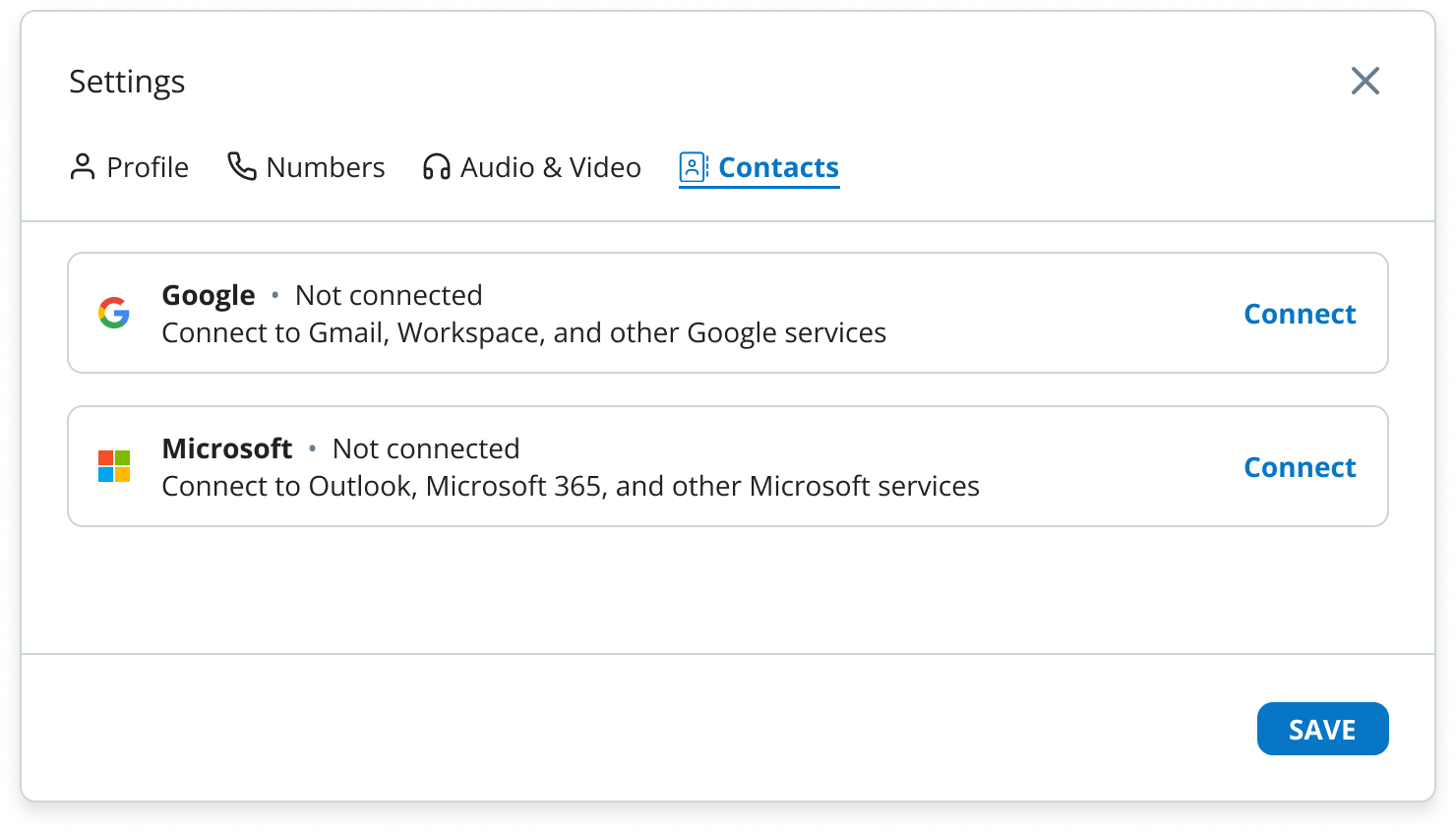
- Go to Menu > Settings > Contacts, or Sidebar > Contacts > Import Contacts.
- Choose to sync from Google or Microsoft accounts. You can synchronise both, one at a time.
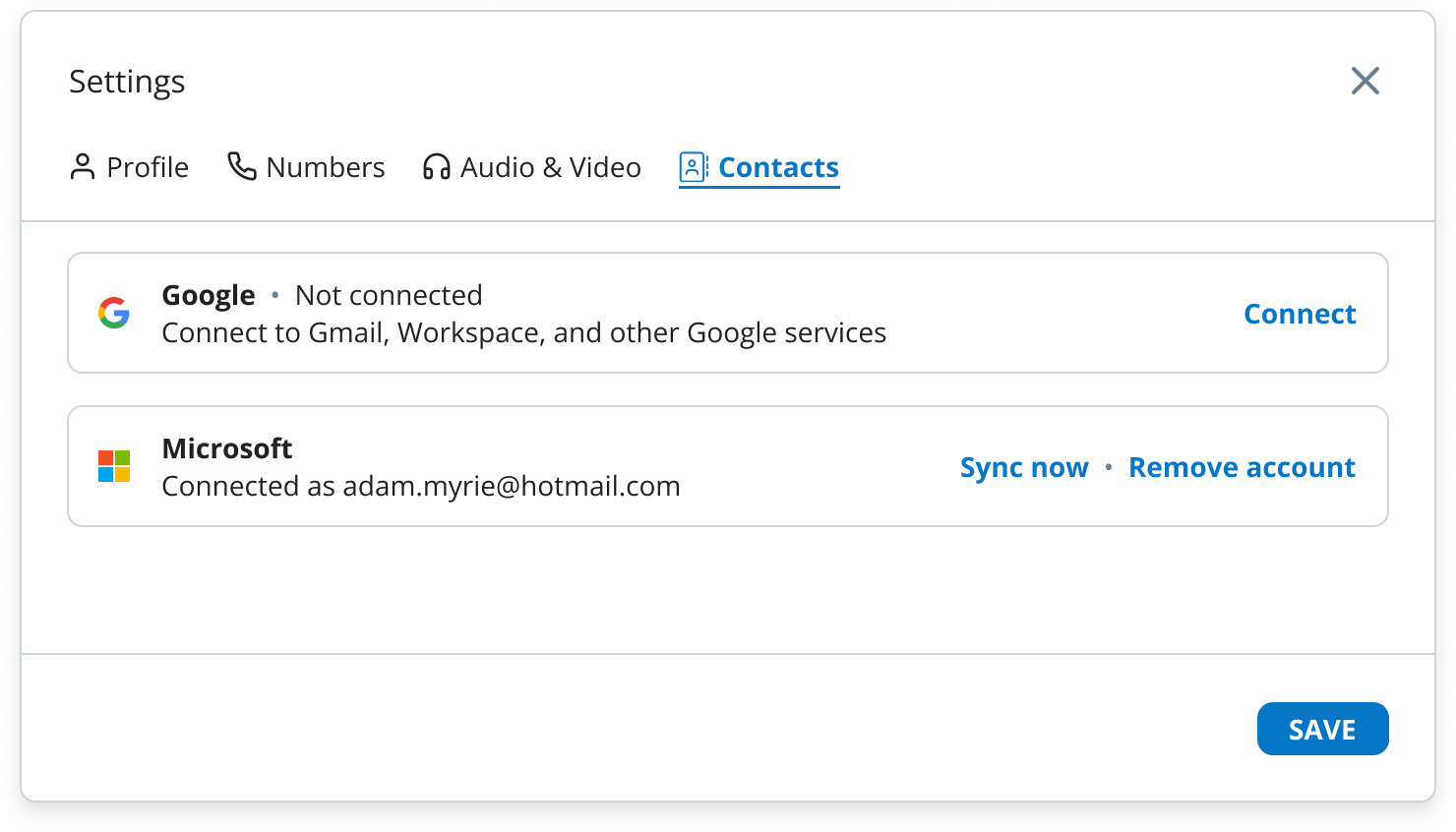
- Click Sync now.
- Authorise the sync in the provider’s login dialog.
- Once synchronisation is complete, your synced contacts appear in the Contacts list on the sidebar.
Note: Once contacts are initially synced, the Import Contacts button won’t appear. Remove the synchronisation to make it reappear.
Remove synced contacts
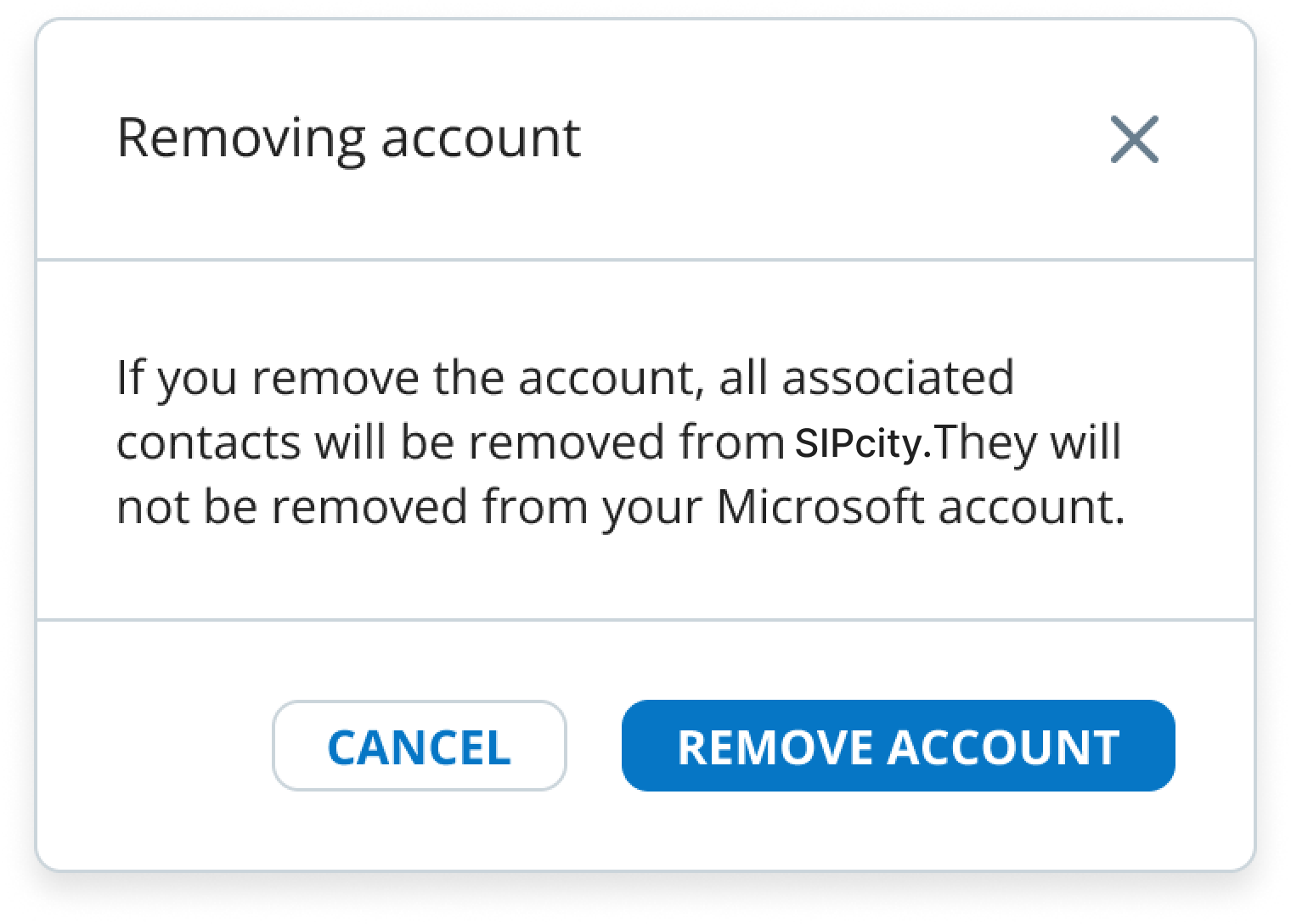
- Go to Menu > Settings > Contacts.
- Click Remove Account.
- Confirm the removal.
Frequently asked questions
Can I force contact synchronisation?
Yes. If a newly added contact from your Microsoft or Google account isn’t showing up in the Web App, go to Settings > Contacts and click Sync now to manually synchronise your contacts.
Why did my contact synchronisation fail?
Synchronisation can fail for several reasons:
- If you abandon the dialog or deny permission, the synchronisation status changes to “Failed”.
- Contacts without both first and last names won’t sync.
- A sync notification will identify which contacts failed to sync.