AI Voice Agent
Never miss another call.
Learn more


AI Voice Agent
Never miss another call.
The Billing and Payments page lets you manage your account balance, payment method, top-ups, and billing settings. You can access it by selecting Billing from the navigation menu on the left-hand side of the screen.
The page contains four sections:
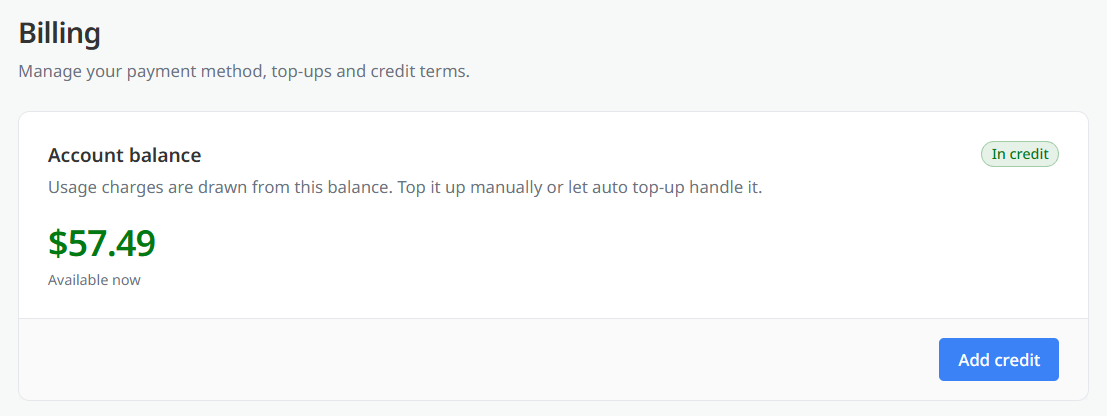
The Account balance section displays your current account balance. Usage charges are deducted from this balance. You can add funds manually or use Auto top-up to automatically add credit when your balance reaches the configured threshold. A status indicator next to the heading shows whether your account is in credit.
Note: To manually add funds to your account, select Add credit.

The Payment method section displays the card used for monthly plans, services, and top-ups.
Card details are securely handled by the payment provider and are not stored by SIPCity
If there is no card on file, this section indicates that one needs to be added. Select Add card to add a payment card.
A payment card is required to:
When no card is available, a notice indicates that automatic top-ups and monthly plan debits are paused until a card is added.
On a pay-as-you-go calling plan, each call you make and each service you purchase is deducted from your account balance. If you do not have automatic top-up enabled, you risk losing the ability to make outbound calls, including calls forwarded to mobile numbers. We recommend setting automatic top-up to On.

The Payment settings section lets you control how your account is funded and when you receive low-balance notifications.
The available options are:
Changes to these settings take effect from your next billing run.
Select Save changes to apply your changes or Cancel to discard them.

The Recent transactions section displays top-ups, invoices, and adjustments applied to your account balance.
Each transaction includes:
A counter below the list shows how many transactions are currently displayed.
To view the complete record of your account transactions, select Billing history.