AI Voice Agent
Never miss another call.
Learn more


AI Voice Agent
Never miss another call.
Call Parking lets you place a call in a virtual “parking bay” so any phone in your system can retrieve it.
Log in and select your number in Switchboard.
Go to Advanced > Call Parking.
Configure these options:
Click Save to update your settings.
To park a call: Press the Call Park button or transfer to *1701.
To retrieve a call: Dial *1701 or press the flashing Call Park button.
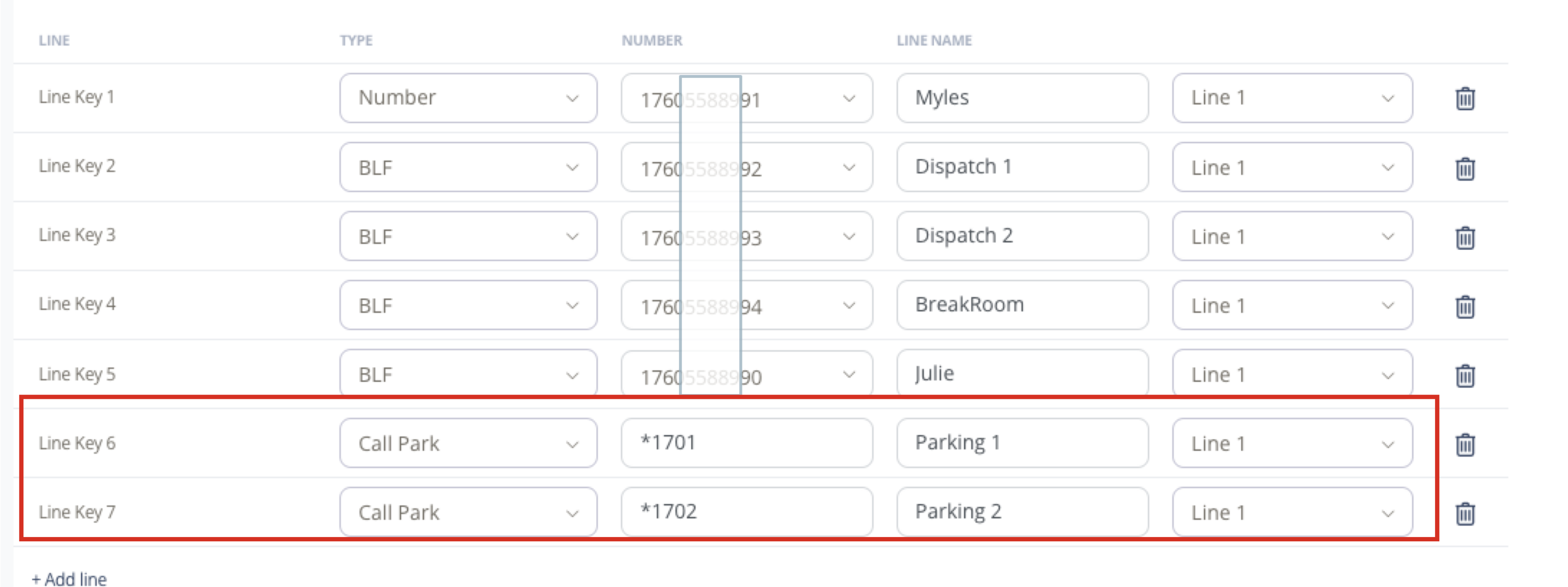
Configure line keys as “Call Park” type with value *1701 for bay 1.
Add a descriptive label such as “Bay 1” or “Parking 1”.
Select the appropriate line (typically Line 1).
Any phone in the same group can retrieve a parked call by dialling *1701 or using a configured Call Park button. When a call is parked, the Call Park button flashes on phones monitoring that bay.
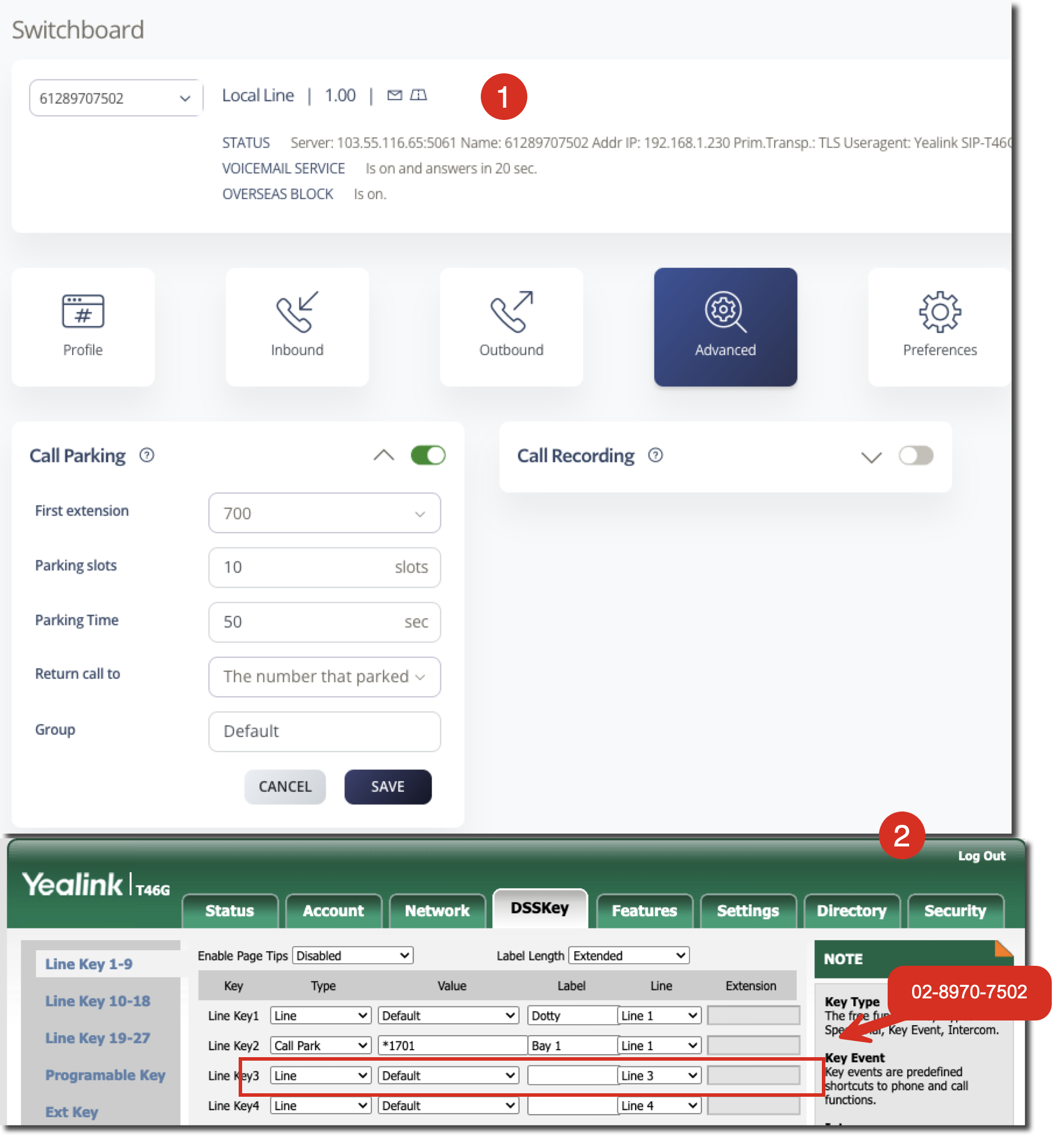
Example: In the image shown, phone extension 61-2-8970-7502 has Call Parking enabled with all extensions monitoring bay *1701. When Emma has configured her phone to monitor bay *1701, her Call Park button labelled “Bay One” flashes when a call is parked. She can retrieve the parked call by pressing this button.
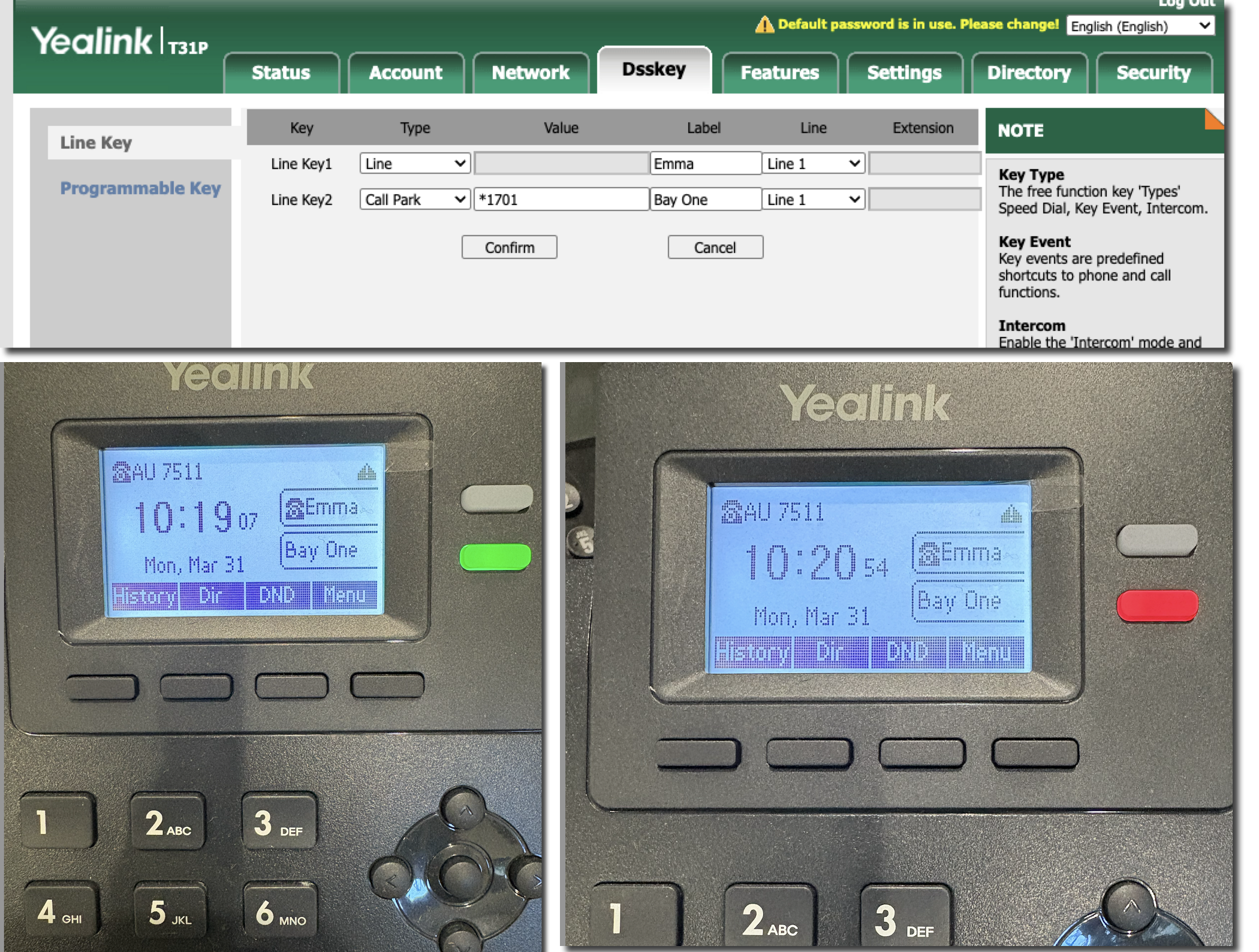
Use SIPcity’s Device Provisioning to easily enable Call Parking on any Yealink phone provisioned through our service.