



AI Voice Agent
Never miss another call.
Learn more


AI Voice Agent
Never miss another call.
SIP Peering lets you connect an IP-PBX directly to SIPcity’s public SIP proxy (27.111.12.66) using a static IP address. This differs from registration, which uses an authenticated username and password.
Once SIP Peering is enabled, SIPcity whitelists your WAN IP and blocks all other IPs from accessing the service. For additional security, configure a firewall rule to restrict SIP port access to our public IP range 27.111.12.0/24.
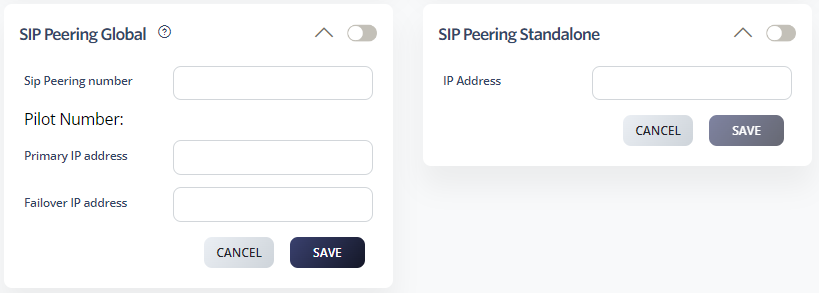
Routes all inbound and outbound traffic on an account to a single nominated WAN IP. Except for Call Forwarding (for emergency failover), this disables other Cloud PBX features.
Select SIP Peering Global.
Add your Primary Trunk Host IP Address and optional failover IP.
Click Save.
Allows a network administrator to connect an IP-PBX to a single number. This is useful for organisations with multiple offices, each with its own WAN IP.
Select SIP Peering Standalone and enable it.
Add your IP address.
Click Save.








