



AI Voice Agent
Never miss another call.
Learn more


AI Voice Agent
Never miss another call.
The Web App is your partner for seamless call management. Here’s how to make calls and manage active conversations.
Check the registration status indicator on the Phone button:
Green: All your active numbers are successfully registered.

Yellow: Some of your active numbers are not registered. Hover over the indicator to see which numbers are active and which are not.

Red: All your active numbers are unregistered.

Click the status indicator to access Number Settings, where you can manage the registration status of your numbers.
Log in to your account
Check that you have a registered number: navigate to Menu Settings > Settings > Phone and ensure Active is toggled on for your number
On the main page, click the Phone button in the upper right corner
Dial or type the number you wish to call. You can also use the Search tool to find contacts
Click the green phone button to start the call
To finish the call, click the red phone button
You can also initiate calls directly from a contact’s chat page.
Go to the Directory page on the left menu
Select the contact you want to call and click to open their Chat Page
On the chat page header, click the Call button
The outbound call will start
To finish the call, click the red phone button
Mute your microphone during an active call. You will still hear the other person, but they will not hear you.
During an active call, click the Microphone Icon to mute
Click the Microphone Icon again to reactivate your microphone

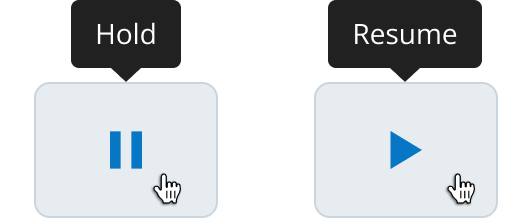
Place an active call on hold.
During a call, click the Pause Icon to hold the call
Click the Play Icon to resume the conversation
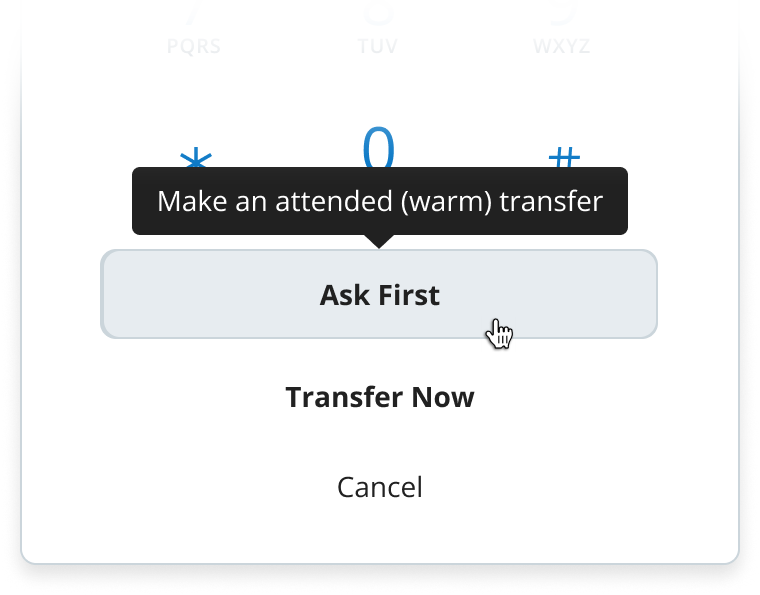
Transfer an active call to another contact or number. There are two methods: Ask First (announce the caller before transfer) and Transfer Now (direct transfer without announcement).
Click the Transfer button
Use the search tool to find a contact or dial a number
Select Ask First and wait for the receiving party to answer
Click Hang up and transfer to complete the transfer, or click Back to and hang up to return to your original call without transferring
Note: If the receiving party does not answer or declines the call, select Back to and hang up to return to your original call.
Click the Transfer button
Use the search tool to find a contact or dial a number
Select Transfer Now
The call will be transferred to the selected number
Use the keypad during a call to make menu selections, such as those required by an auto attendant or extension dialling.
During an active call, click the Keypad icon
Click the desired number(s) on the dial pad
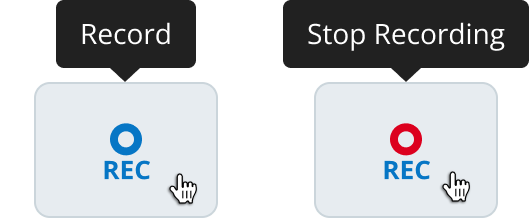
Record and save calls directly to your device.
During an active call, click the Record Icon to start recording
Click the Record Icon again to stop recording
Click Save to save the recorded file to your device
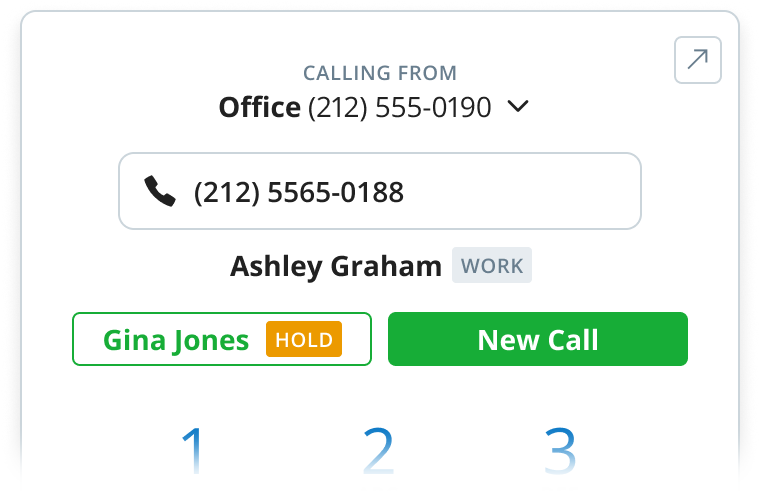
Start a new call while already on another call. The existing call will be automatically placed on hold.
While on an active call, click New Call to search for a contact or dial a number
Make the new call
Click End Call to end the new call and return to the previous call, or click Merge to combine both calls
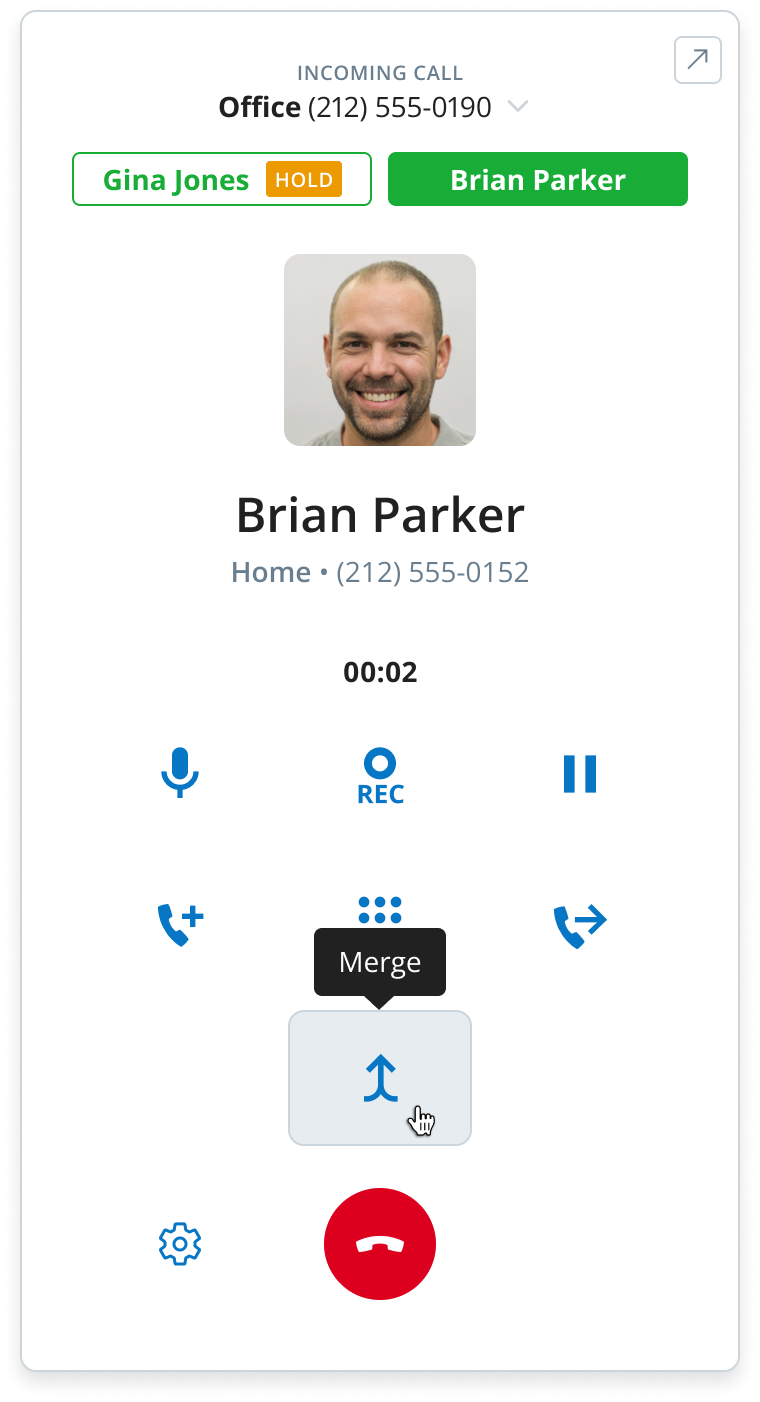
Combine multiple active calls into a single conversation.
Start a new call using the New Call feature, or receive an incoming concurrent call
While on another call, click the Merge button to combine both active calls
Once merged, all participants will be able to hear and speak to each other
If more than three people are merged into a call, hover over the avatars and numbers to see the full names and complete phone numbers of participants.
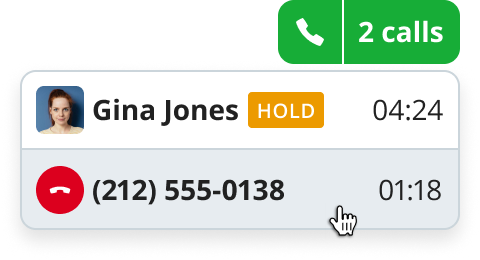
Minimise the phone window while on an active call using the Dock button.
While on an active call, click the Dock icon in the upper right corner of the keypad
The Phone icon on the main page will turn green and display the current call duration
Click the green phone icon to reopen the keypad

When you have two or more active calls, the Phone icon displays the number of ongoing calls instead of the duration. Right-click on the green phone button to see the duration and parties involved in each call. You can then:
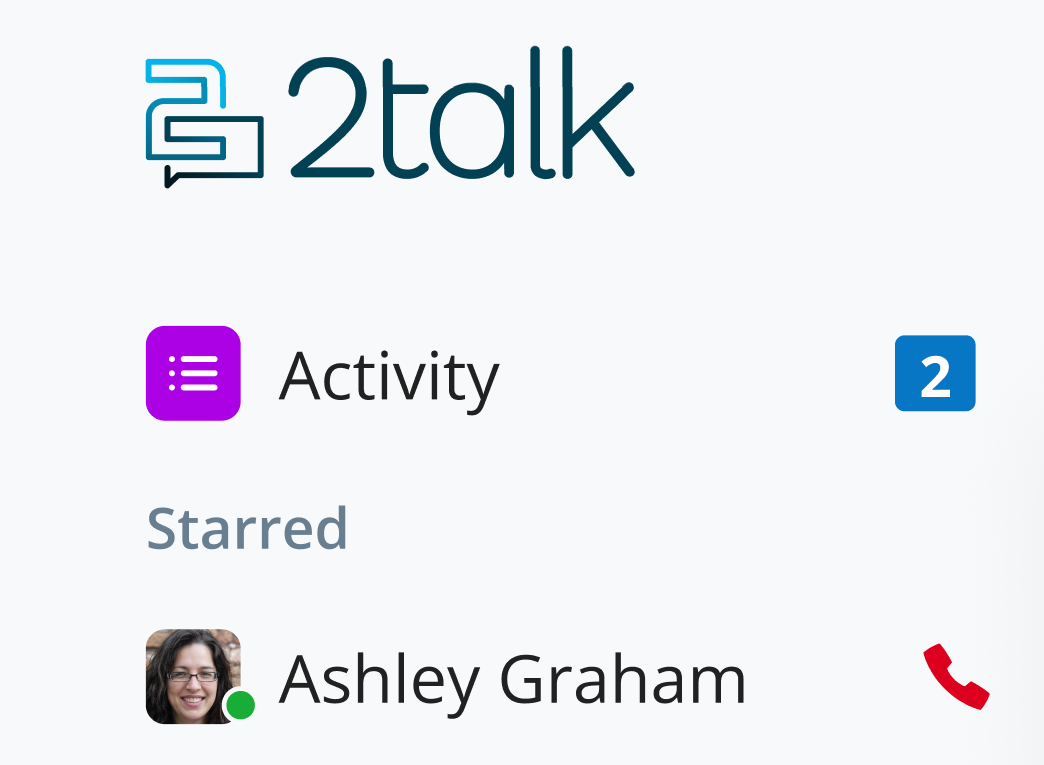
The Presence feature shows the availability status of contacts, indicating whether they are on a call. A phone icon displays next to their name in the directory and chat page. If you see an incoming call notification, click the red blinking icon to accept the call.
View your call history within the app.
Click Activity in the upper left corner
Click Calls in the upper right corner
Note: Call records are only available while you are logged in. Once you sign out, they will no longer be accessible.








