AI Voice Agent
Never miss another call.
Learn more


AI Voice Agent
Never miss another call.
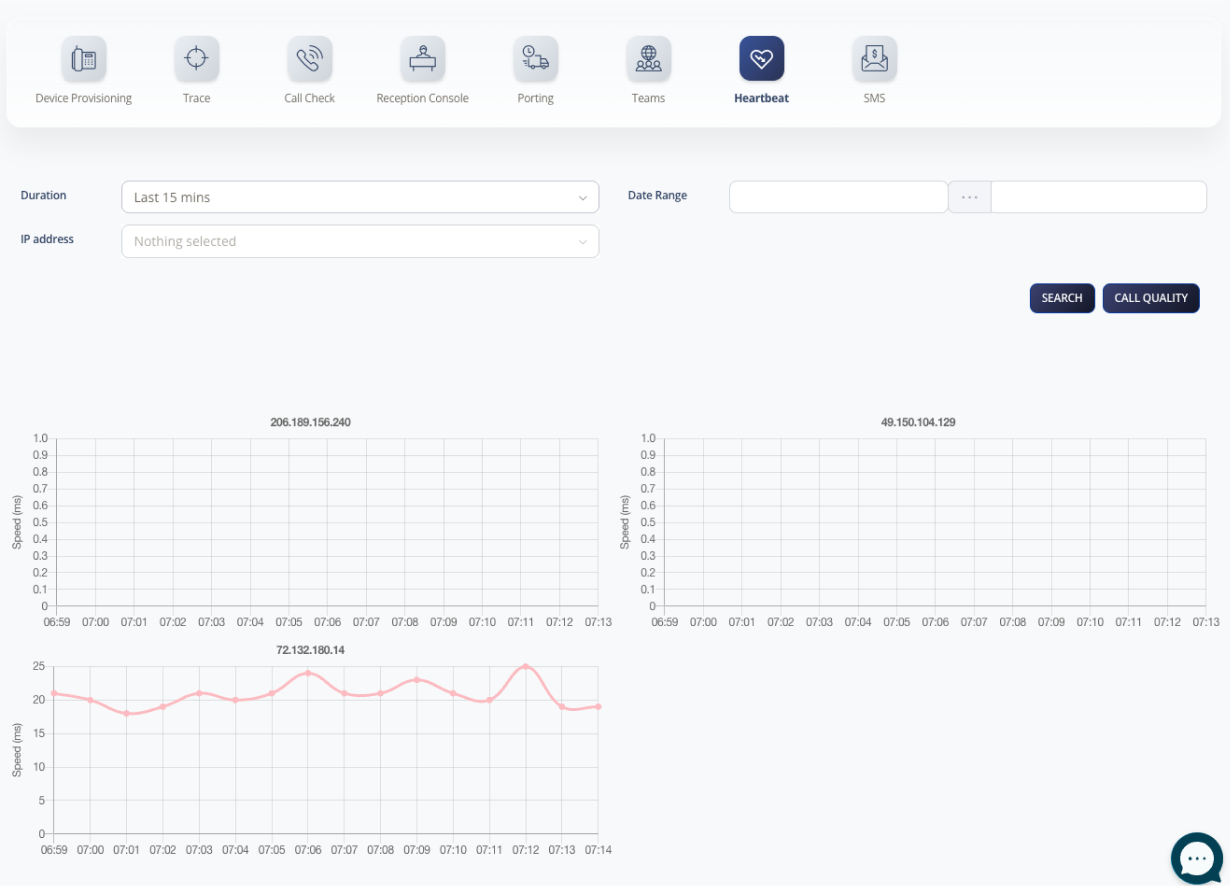
Heartbeat provides a basic ICMP report on potential network issues. It is useful as a general overview of connectivity between your network and ours, but is less effective for monitoring brief or momentary packet loss unless those outages occur consistently over periods longer than five minutes.
Log in to your account.
Go to Tools > Heartbeat.
Click Preferences.
Heartbeat requires ICMP to be enabled on your router. Follow the generic steps below to configure ICMP:
Access your router’s administration interface by entering your router’s IP address in a web browser. The address is typically 192.168.1.1 or 192.168.0.1.
Log in using your router’s admin username and password. If you have not changed these, they may be defaulted to “admin/admin” or “admin/password”. Consult your router documentation for the correct credentials.
Locate the firewall or security settings, usually under a Firewall, Security, or Access Control menu.
Look for a setting to enable ICMP or allow ping responses. Many routers have a checkbox labelled Allow ICMP or Respond to ping. Ensure this setting is enabled.
If you do not see an explicit ICMP or ping setting, you may need to create a basic firewall rule to allow ICMP traffic. Add a rule to allow ICMP or ICMP Echo on the WAN interface.
Save your changes. You may need to restart your router for the changes to take effect.