








Purpose
Provides custom audio that plays during specific caller states such as transfer or call setup, personalizing the experience and reinforcing brand tone. Tailored audio can reduce perceived wait and clarify transitions between call stages.
How to Navigate
Log in to the SIPcity portal. Then, go to:
SwitchBoard | Media | Caller Music section.
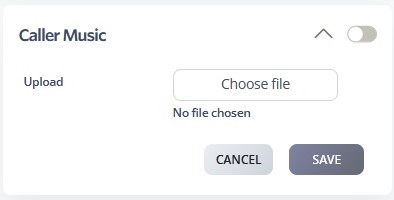
Configuring Caller Music
1. Enable & Upload
- Turn on Caller Music with the main toggle.
- Click Choose file and upload an audio track (.mp3, .wav, .m4a).
- Status will update once the file is successfully uploaded.
2. Audio Guidelines
- Choose audio that matches your brand and caller context.
- Keep tracks clear, professional, and appropriately short.
- Ensure smooth looping and set volume to a comfortable level.
- Different audio can be used for different scenarios (if supported).
3. Apply & Test
- Configure audio options (volume, loop).
- Click SAVE to apply changes.
- Test with real calls to confirm playback quality and timing.
- Update recordings periodically (e.g., seasonal or promotional versions).