








Purpose
Manages audio file uploads for auto attendant greetings, menu prompts, and announcements to deliver a professional and consistent caller experience. Custom recordings ensure callers hear accurate options and branding when reaching the automated menu.
How to Navigate
Log in to the SIPcity portal. Then, go to:
SwitchBoard | Media | Auto Attendant section.
How to Configure
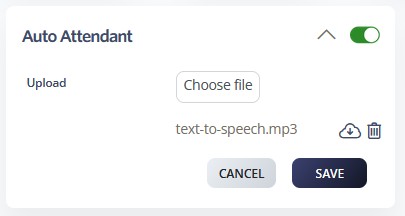
- Enable & Upload: Activate Auto Attendant with the main toggle, then upload an audio file (
.wavor.mp3) from your computer. - Confirm Upload: Ensure the file name appears in the system and verify the upload status.
- Configure Settings: Adjust audio quality, compression, or language versions as needed.
- Save & Test: Click SAVE, then test the Auto Attendant to confirm audio plays correctly.
- Maintain Quality: Use clear, professional recordings of appropriate length; replace files anytime by uploading a new one.