








This feature enables multiple participants to join a single call session with advanced access controls. Furthermore, the conference bridge functionality supports secure multi-party audio communications with administrative oversight. Because businesses need reliable meeting solutions, you can also add recording capabilities for professional meetings.
This is an advanced feature of the Cloud PBX.
How to Configure Conferencing
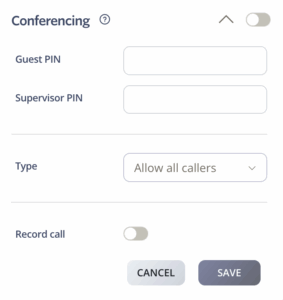
Log into SIPcity portal | Switchboard | Inbound | Conferencing
- Toggle the Conferencing feature ON/OFF using the main switch
- Configure Saved PIN for secure conference access
- Set Supervisor PIN for administrative control
- Define conference Type – All OR selected Callers
- Record call – Yes/No
- Save configuration changes
FAQs
How many conference rooms can I create?
Your SIPcity plan determines the number of conference rooms you can create. Most plans let you set up multiple rooms. Check with support for specific limits.
Can I moderate conferences in real-time?
Yes. Depending on the conference type, administrators can mute participants, remove users, and manage the session dynamically.
What audio formats are supported for recordings?
Your system saves recordings in standard formats such as MP3 or WAV. Confirm the exact formats in your portal settings.
Call Flow Priority #1
Conferencing holds the highest priority in our CloudPBX system with the PBX routing eligible calls directly to conference rooms before applying any other features.
Conference → Rejection Strategy → Auto Attendant → Call Queuing